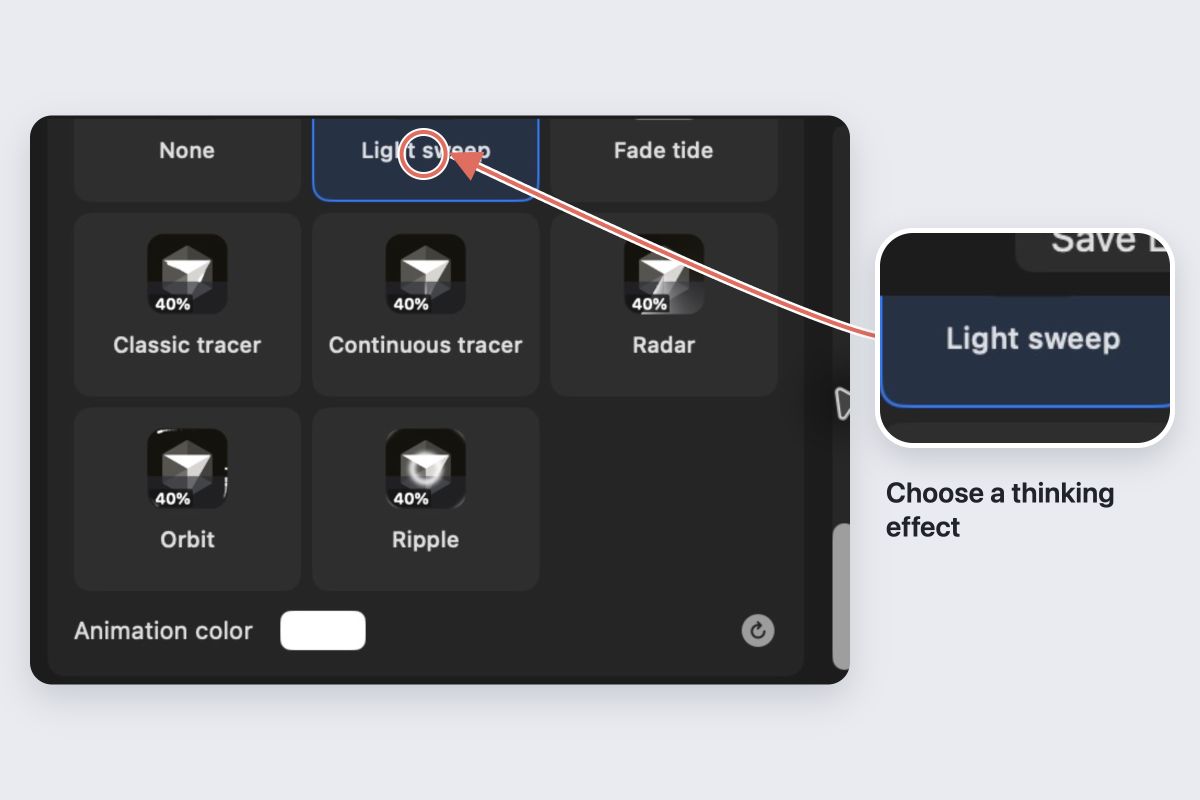
Choose a thinking effect
Use IconSwapper on macOS 14 or later and an installed supported assistant.
- Choose Add App → Live Icon, then select Claude, ChatGPT or Cursor.
- Open Thinking in the inspector.
- Choose an effect and adjust Animation color if available. Use Replay Thinking to preview it.
- Start a request in the assistant and watch its actual Dock icon. Follow any permission guidance in IconSwapper.
Keep IconSwapper running. The replay button demonstrates the effect; it does not establish that live activity is connected.
Thinking and usage tell you different things
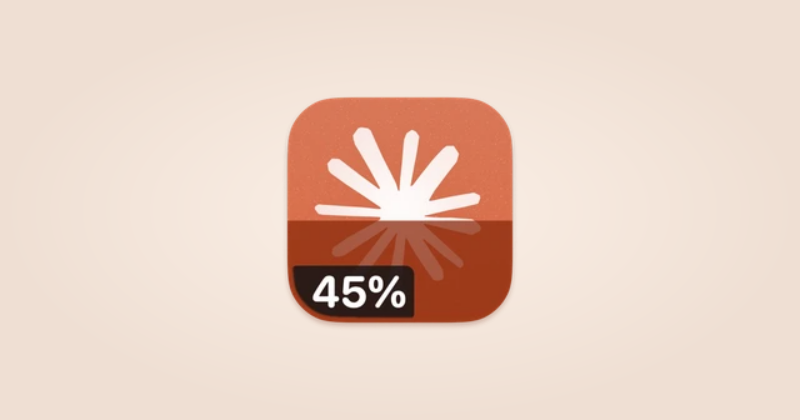
Thinking animation indicates observed work in the assistant. The usage fill represents the account’s allowance. Neither one tells you whether the answer is correct or how much longer it will take.
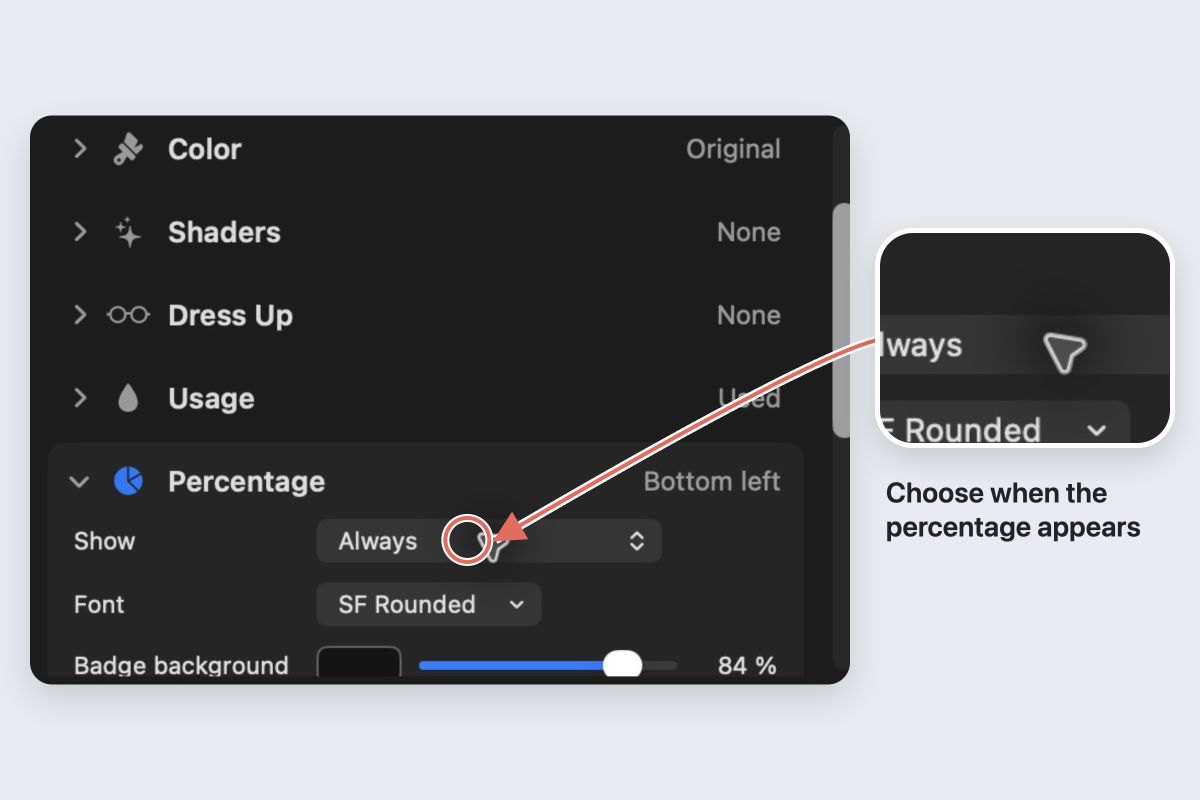
You can style the usage meter separately under Usage. Keep the percentage discreet if the animation already makes the icon busy.
If the effect only works in the preview
Check that you added a Live Icon for the installed app you are using. Read its connection and permission status, then test a new request in that app. Activity detection depends on the supported app and its observable state.
A browser conversation is not the same target as a desktop Live Icon. Do not use the preview replay as evidence of live detection.
Turn the effect down
Use a quieter animation color or enable macOS Reduce Motion for still artwork. To return the whole icon to its original state, choose Restore Original Icon.