Connect Spotify
You’ll need the Spotify desktop app, IconSwapper and macOS 14 or later. This does not use the Spotify web player.
- In IconSwapper, choose Add App → Live Icon → Spotify.
- Open Spotify and play a track. Allow IconSwapper’s Automation request so it can read playback.
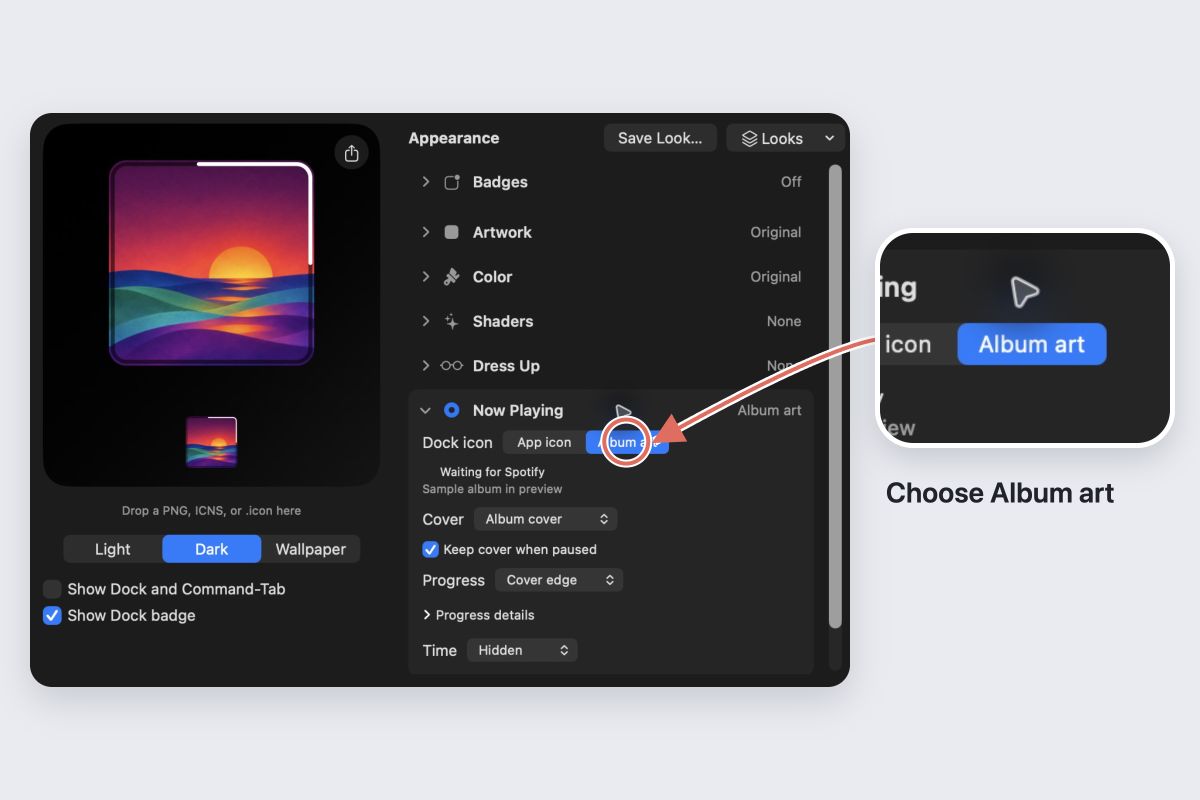
- Select Spotify in IconSwapper. Open Now Playing and set Dock icon to Album art.
- Turn on Show Dock and Command-Tab if it is off. Check Spotify’s icon in your Dock.
Keep Spotify and IconSwapper running. If the editor says “Sample album in preview,” it is showing an example, not artwork from your current track.
Choose the look
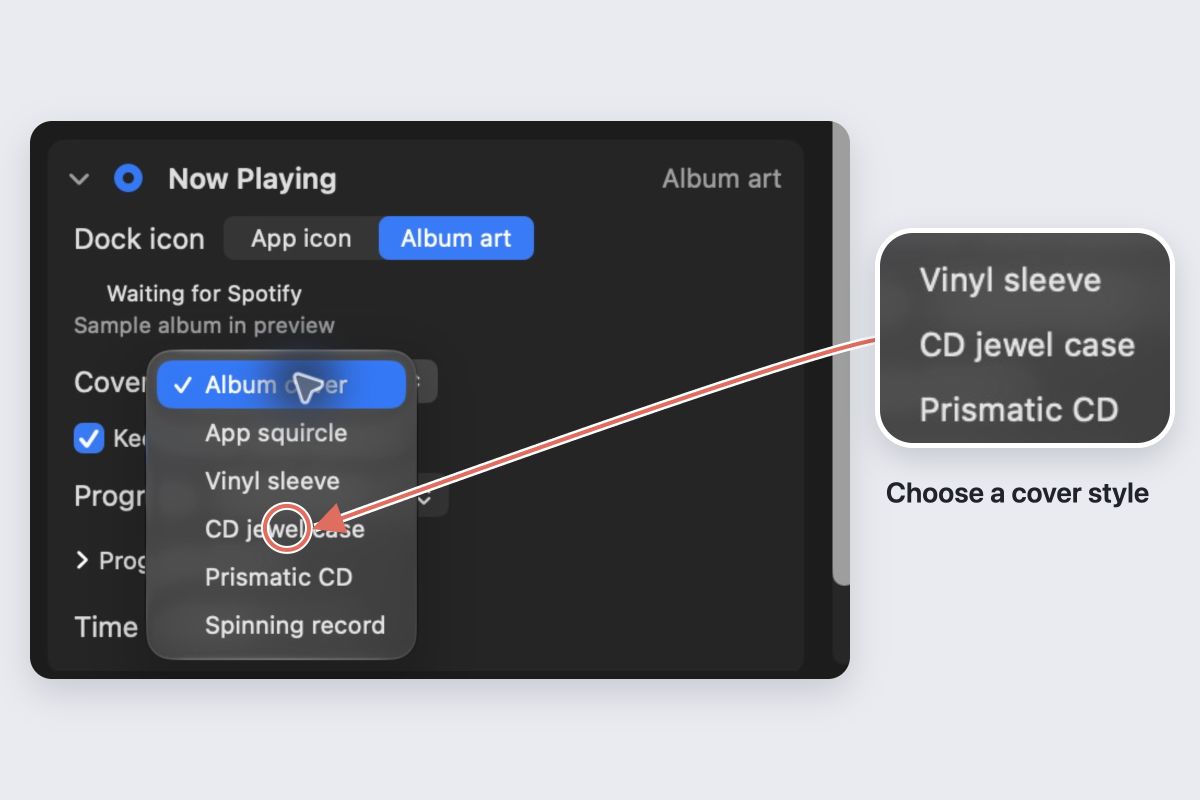
Under Now Playing → Cover, choose an album cover, app squircle, vinyl sleeve, CD jewel case, prismatic CD or spinning record.
Use Progress to add an edge or bar. Use Time to show elapsed or remaining time. Check that you can read these at your usual Dock size.
Choose what happens when you pause
Leave Keep cover when paused on to keep the artwork visible. Turn it off to show Spotify’s app icon when playback pauses. A spinning record holds its position during a pause.
If the artwork is missing
Start a track with cover art and check the status under Now Playing. In System Settings → Privacy & Security → Automation, check IconSwapper’s Spotify permission if it is listed. Follow any other permission guidance in the app.
The sample sunset image does not confirm a connection. Try a track change and check the actual Dock.
Switch back
Choose Now Playing → Dock icon → App icon to stop showing albums. Choose Restore Original Icon to return to Spotify’s original artwork.