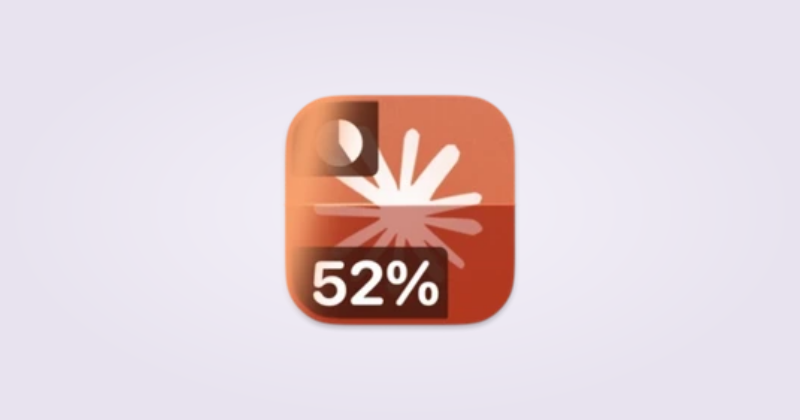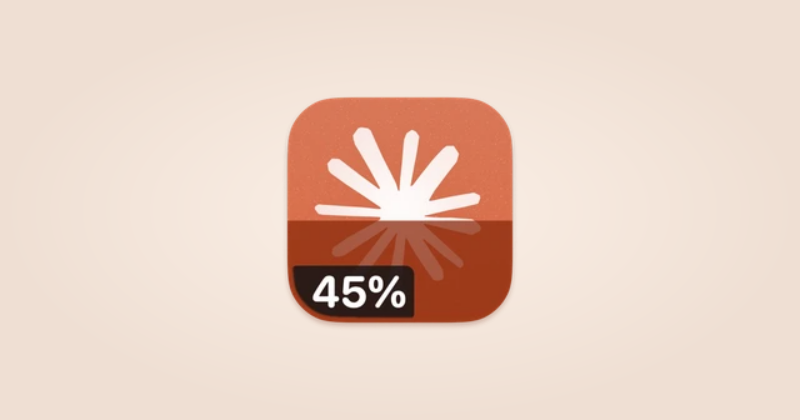
Connect Claude
You’ll need the Claude desktop app, a signed-in Claude account, and IconSwapper on macOS 14 or later.
- Open Claude and check that you’re signed in to the account you want to follow.
- In IconSwapper, choose Add App → Live Icon → Claude.
- Check the account shown in IconSwapper. If it asks for Keychain access, choose Allow access… and follow the prompt so it can read your signed-in account’s usage.
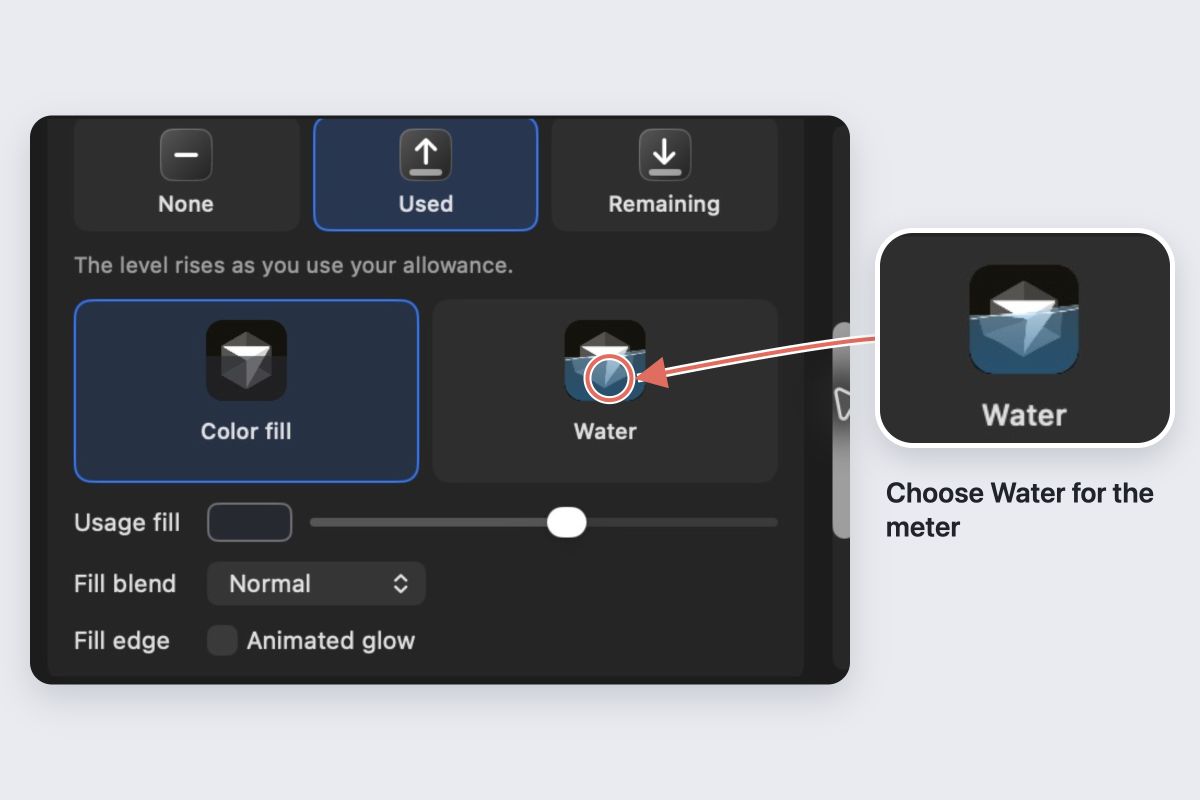
- Open Usage and choose Used or Remaining. Choose Color fill or Water for the meter.
Used rises as you spend your allowance. Remaining falls. Keep IconSwapper running and check Claude’s actual Dock icon.
Add a percentage
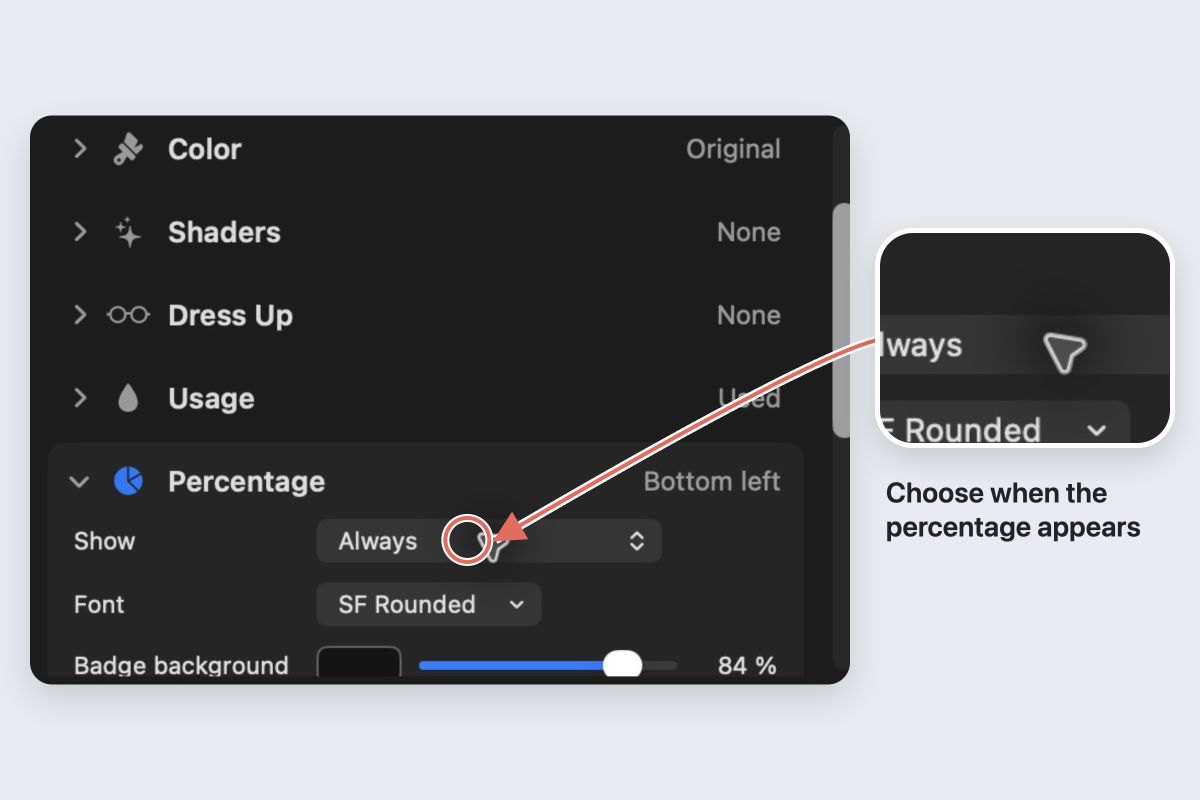
Open Percentage → Show. Choose Always for a permanent number, or On hover to reveal it when you need it.
For a quieter Dock, choose When usage reaches… and set the threshold to 80% used. The number appears when you reach that point, or when you hover over the icon. The threshold always means usage spent, even if the label shows what remains.
Show the reset countdown
Open Reset countdown → Show and choose when the label should appear. Use When reset is within… to show it only near the reset, or Always to keep it visible.
Percentage and reset labels have separate rules. Hover and Command-Tab interaction need Accessibility access. The editor keeps configured labels visible so you can style them; check the Dock to see the visibility rules in action.
If the reading looks wrong
Check the account and usage status in IconSwapper, then use the refresh button beside the account heading. If you’re signed out, sign in through Claude first.
Turn off Try an example percentage if you enabled it in the editor. An example is for styling, not a live reading. Usage and thinking are separate: an animated icon means the assistant is working, not that it has reached a particular usage level.
Remove the meter
Choose Usage → None to hide the usage fill. Choose Restore Original Icon to return to Claude’s original artwork.