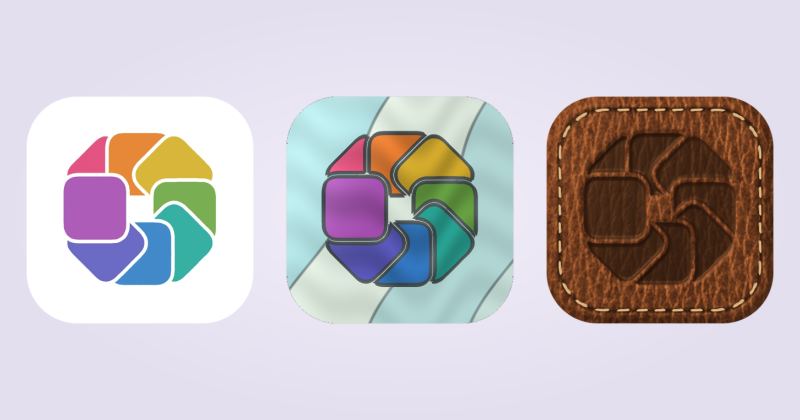
Change an icon in your Dock
You’ll need IconSwapper and macOS 14 or later. Keep IconSwapper running while you use your custom icons.
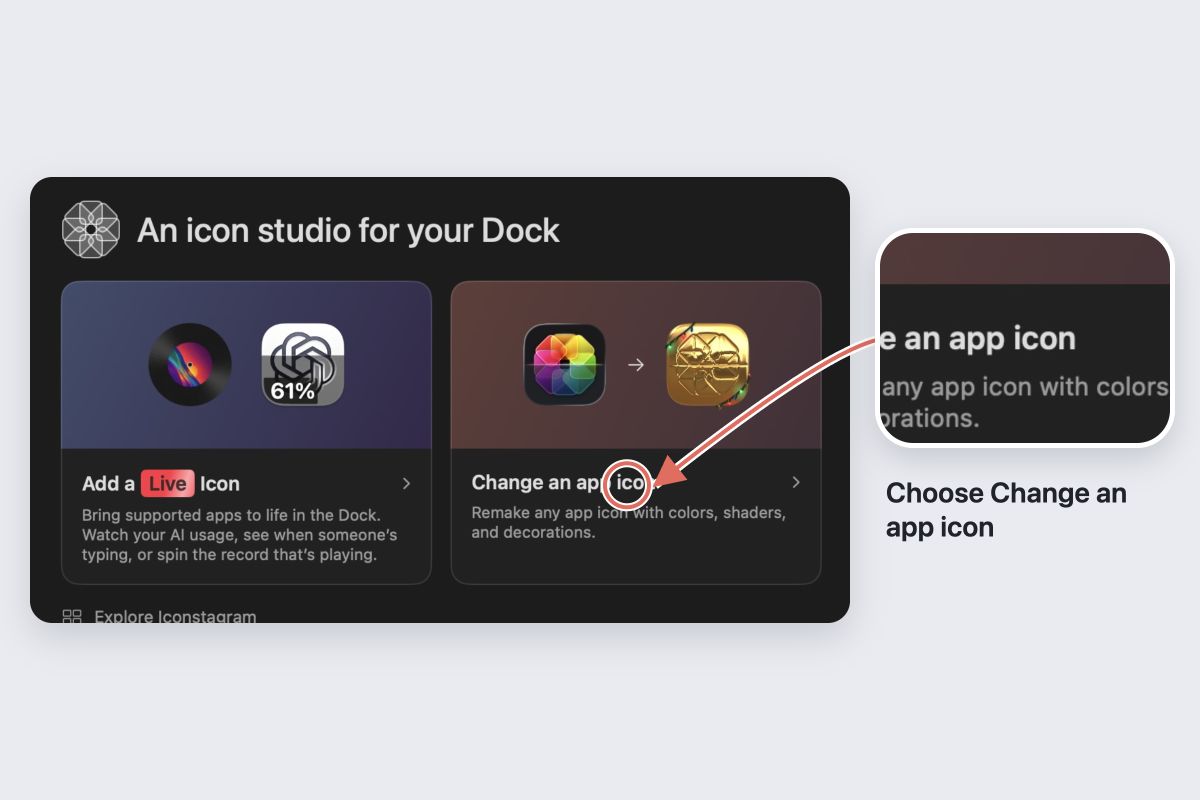
- Choose Add App, select the custom-icon option, and pick the installed app you want to change.
- Drop a PNG, ICNS or .icon file into the editor, or choose artwork from the icon library.
- Use Color, Shaders or Dress Up if you want to change the finish or add decorations.
- Turn on Show Dock and Command-Tab if it is off. Follow any permission prompts, then check the icon in your Dock.
Open the app and check Command-Tab too. Use your normal Dock size to judge the result; fine details can disappear when the icon is small.
Change a file icon with Get Info
For a static file or folder icon, you can use macOS without installing anything. This can also work on apps you’re allowed to modify; protected apps may refuse the change.
- Open your image in Preview. Choose Edit → Select All, then Edit → Copy.
- Select the target item in Finder and choose File → Get Info.
- Click the small icon at the top of the Info window and paste.
If Paste is unavailable, check that you selected the small icon, not the large preview. See Apple’s instructions for the built-in method.
Restore the original icon
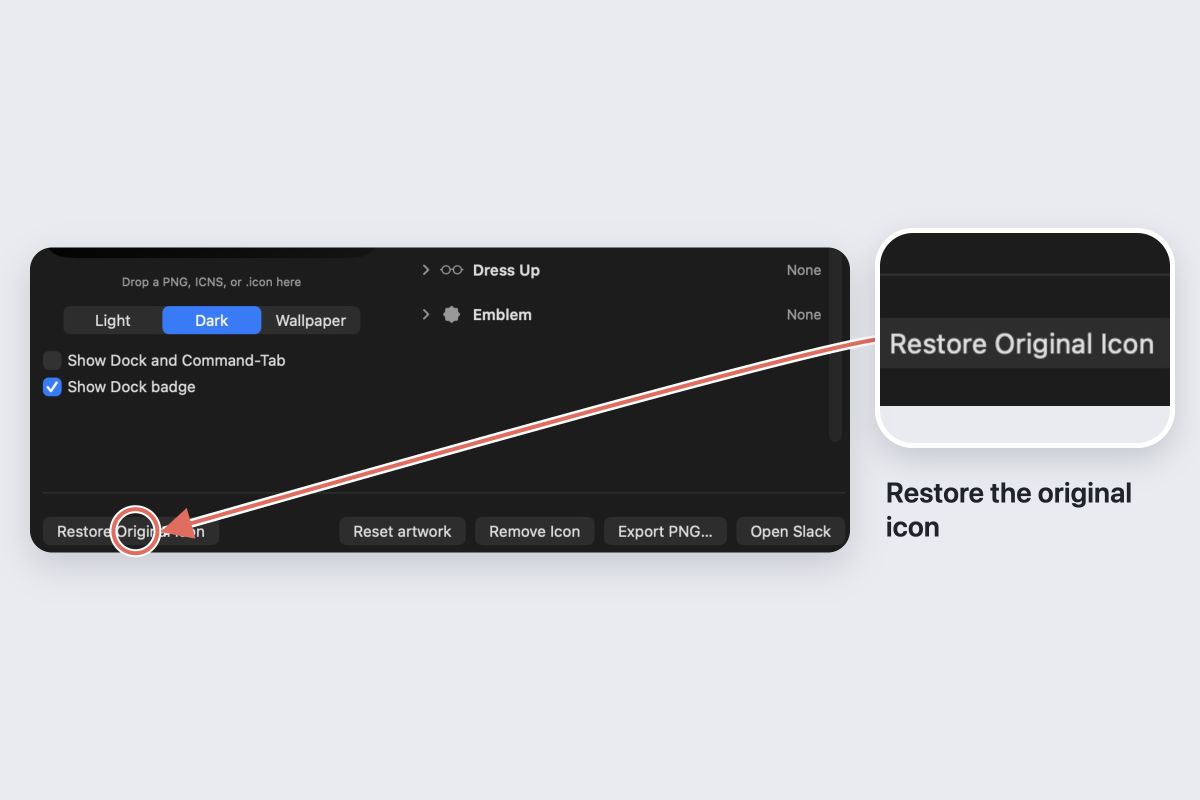
In IconSwapper, select the app and choose Restore Original Icon. For a Get Info edit, select the small icon again and choose Edit → Cut.
If the icon has not changed
Check that IconSwapper is running, Show Dock and Command-Tab is on, and you selected the correct installed copy of the app. Follow any permission guidance in IconSwapper.
Finder’s file icon is separate from the Dock artwork. IconSwapper changes the Dock and Command-Tab, so the file icon may still look unchanged.