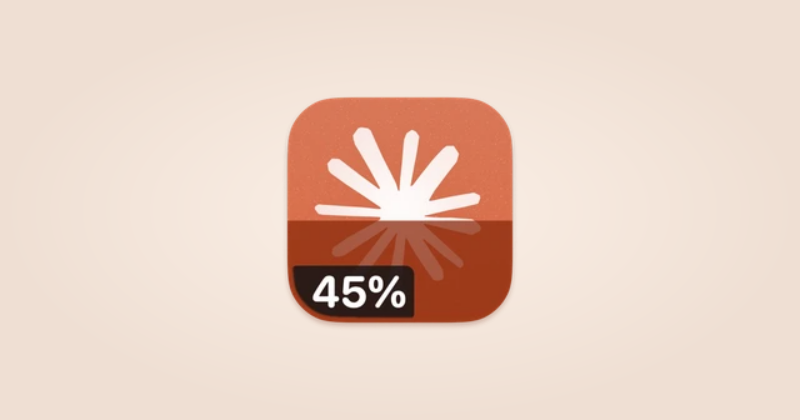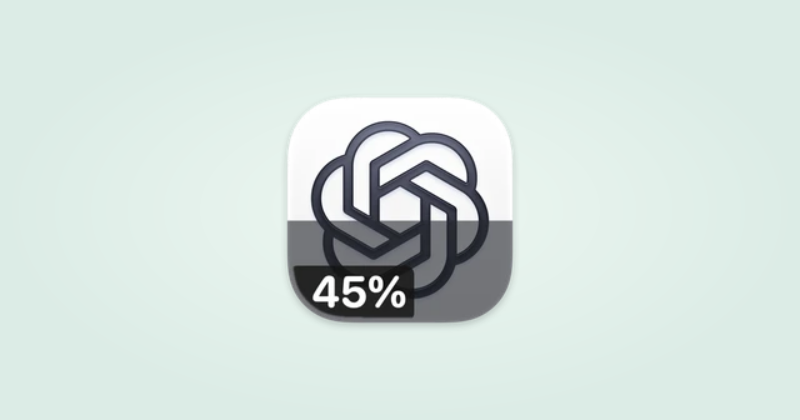
Connect the account
You’ll need IconSwapper on macOS 14 or later and a local Codex sign-in with your ChatGPT account. Signing in only on the ChatGPT website does not supply this reading.
- Open Codex and sign in with the ChatGPT account you want to follow.
- In IconSwapper, choose Add App → Live Icon → ChatGPT.
- Check the account and usage rows shown in IconSwapper. Follow any setup or permission guidance.
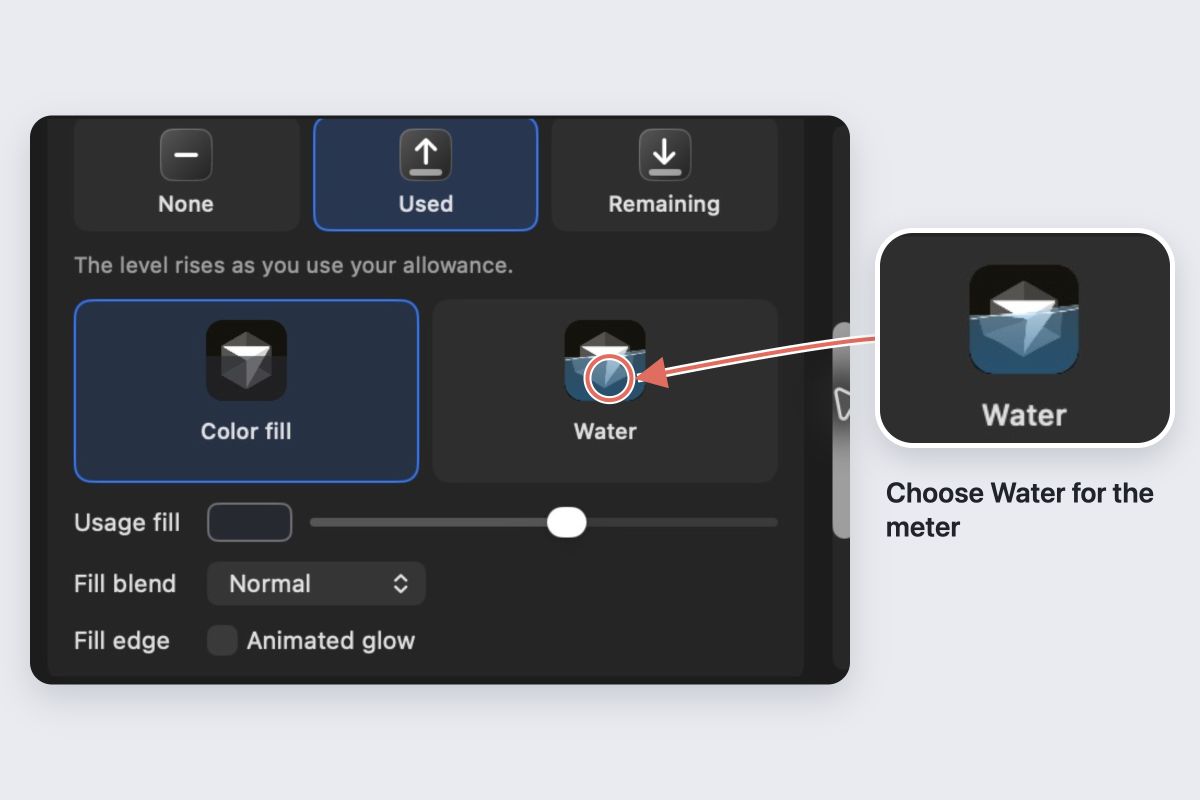
- Under Usage, choose Used or Remaining, then Color fill or Water.
Keep IconSwapper running. Check the ChatGPT icon in your Dock rather than relying on the editor preview.
Understand the reading
The meter uses the usage information returned for the locally signed-in Codex account. It is not a count of every ChatGPT message, API token or API charge. Read the named limits in the account panel to understand what the service is reporting.
If you use different accounts in ChatGPT and Codex, check the account shown in IconSwapper before interpreting the meter.
Choose the labels
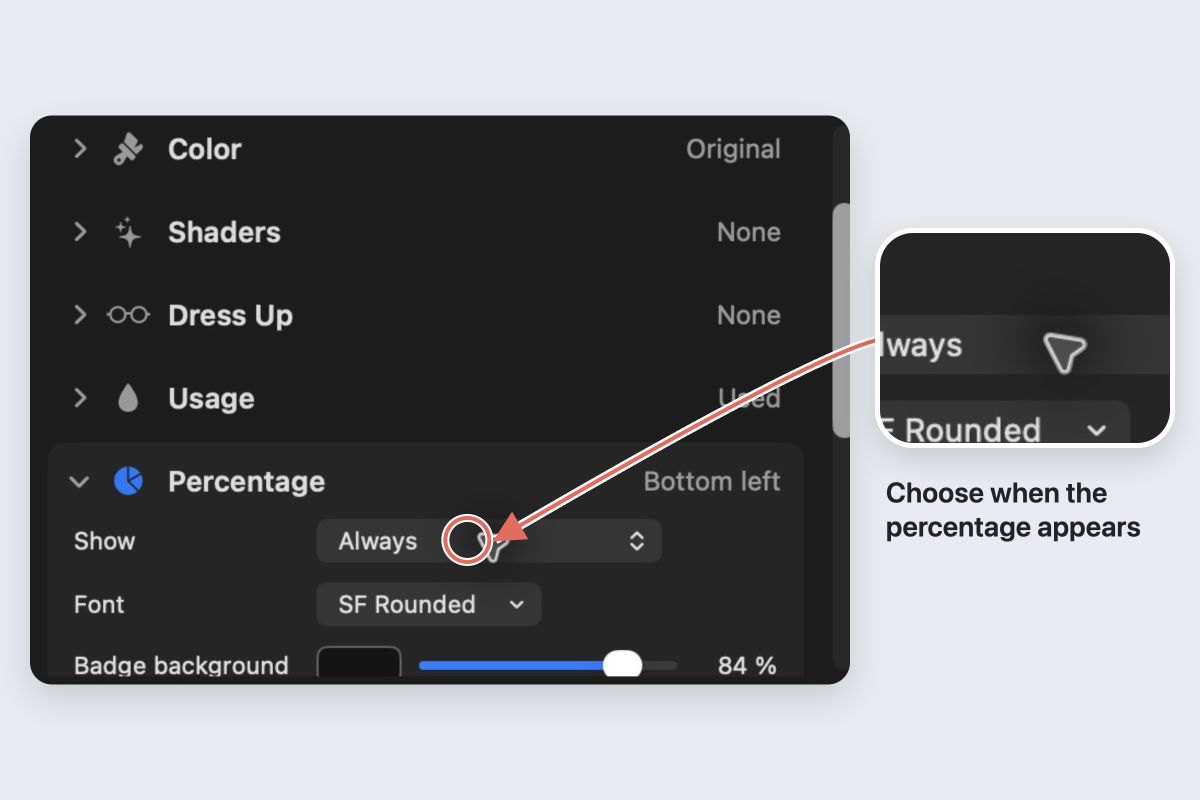
Under Percentage → Show, choose Always, On hover or a usage threshold. Under Reset countdown → Show, choose when the reset label should appear. The two labels have independent rules.
A threshold always means percentage used, even when you display remaining allowance.
If usage is unavailable
Check the account status and refresh button in IconSwapper. Sign in through Codex again if the account is signed out. An API-key-only setup does not provide the account sign-in this reader expects.
Turn off Try an example percentage if enabled. Do not mistake a preview number for a live reading.
Remove the usage display
Choose Usage → None to hide the fill, or Restore Original Icon to restore the original artwork.