Enable the loading animation
Use the installed Google Chrome app and IconSwapper on macOS 14 or later.
- Choose Add App → Live Icon → Google Chrome.
- Turn on Spin while a page loads.
- Allow the Automation request so IconSwapper can read Chrome’s loading state. Follow any additional Accessibility guidance.
- Load a page in Chrome’s active tab and watch its Dock icon.
Keep IconSwapper running. A page that loads quickly may finish before you notice much movement.
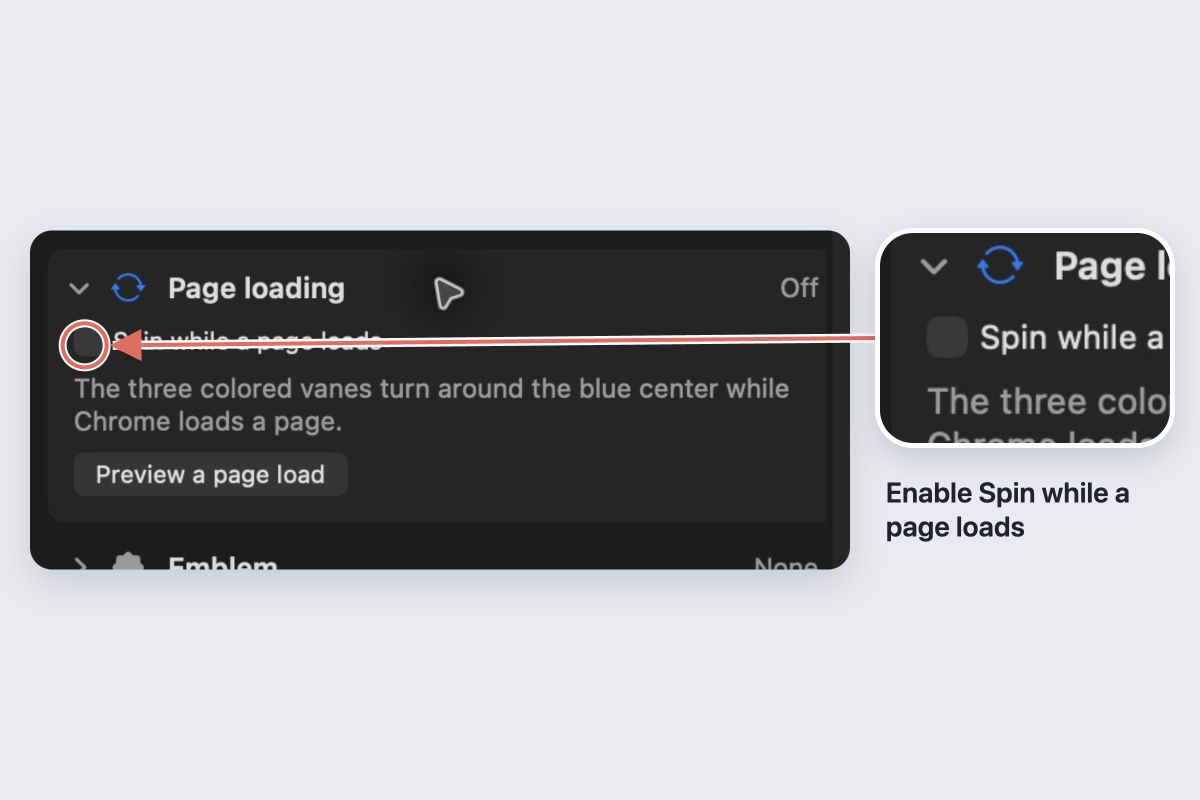
What the spin means
The animation follows the loading flag of the active tab. It is not a download-progress meter, a network-speed test or a signal for every background tab.
Chrome uses your installed browser and its existing profiles. Test the window and tab you are actually using rather than a preview animation.
If Chrome does not spin
Check that the setting is enabled and the Automation permission was allowed. Read IconSwapper’s connection status. Some configurations also need Accessibility to position the artwork.
Try a fresh page load in the active tab. If Chrome has already finished loading, the still icon is expected.
Stop the animation
Turn off Spin while a page loads to stop the loading effect. Choose Restore Original Icon to return Chrome’s original artwork.