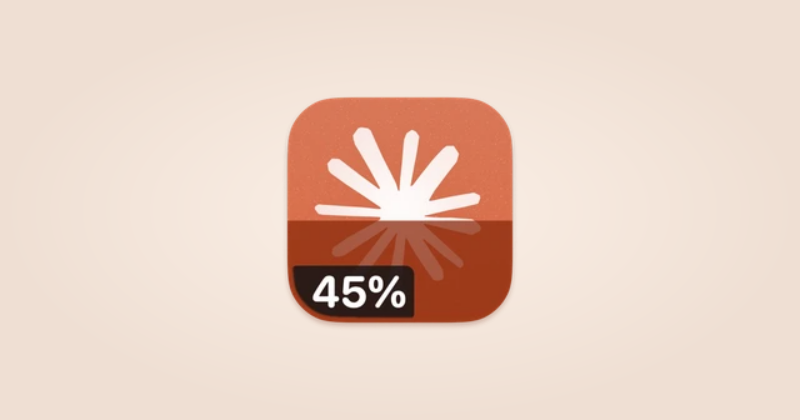
Start with the busiest icon
Open IconSwapper and select the icon that most often draws your eye.
- For a Custom Icon with a shader, set Motion to On Interaction or Still.
- In Dress Up, remove decorations you do not need. For String Lights, try Steady lighting.
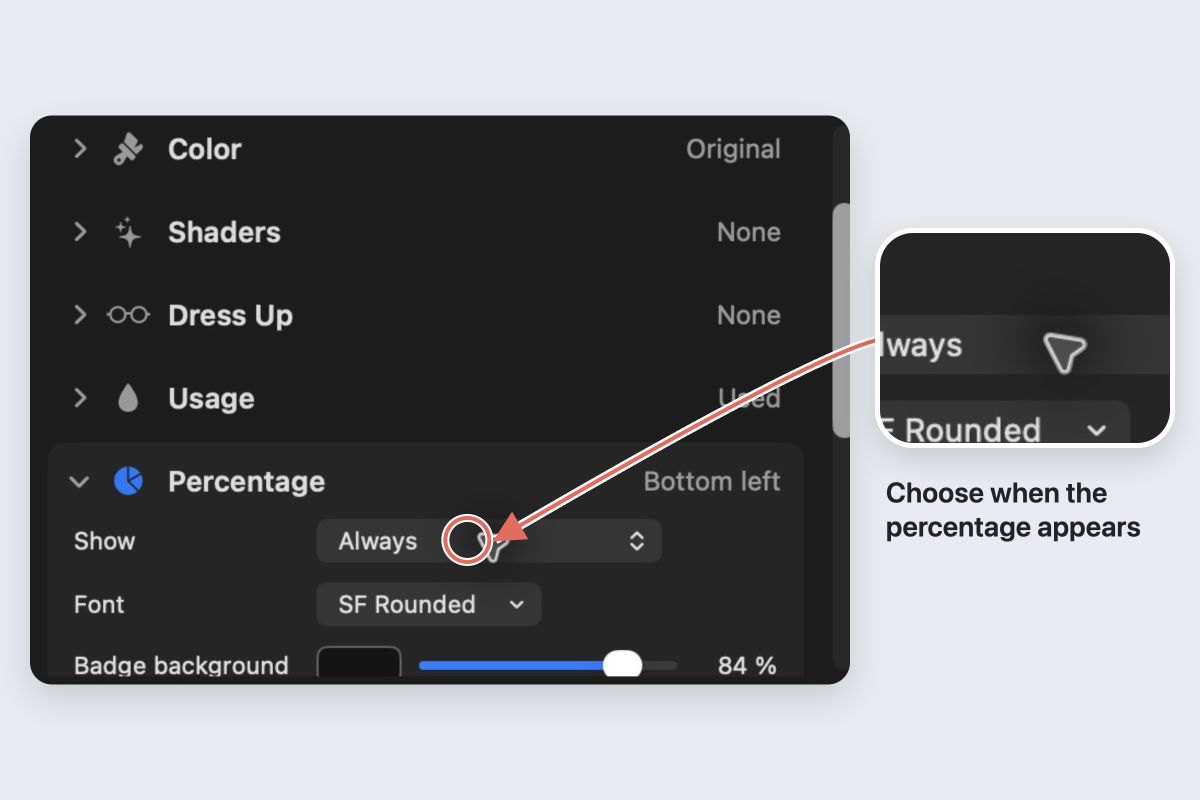
- For an AI Live Icon, set Percentage → Show to On hover or a usage threshold.
- Set Reset countdown → Show independently. Choose Never if the countdown is not useful.
Check the Dock during ordinary work. A quieter style should still let you recognize the app and notice the signals you chose to keep.
Use thresholds deliberately
Try showing the percentage only after 80% of an allowance has been used. It also reveals on hover, so you can check sooner without a permanent label.
For badge effects, consider a brief response on an increase rather than a continuous effect above the threshold. Pick the count that actually needs your attention.
Understand Automatic motion
Automatic varies by material. Some effects react to interaction, while others also consider whether the Mac is on external power. Choose Still when you want a predictable stationary result.
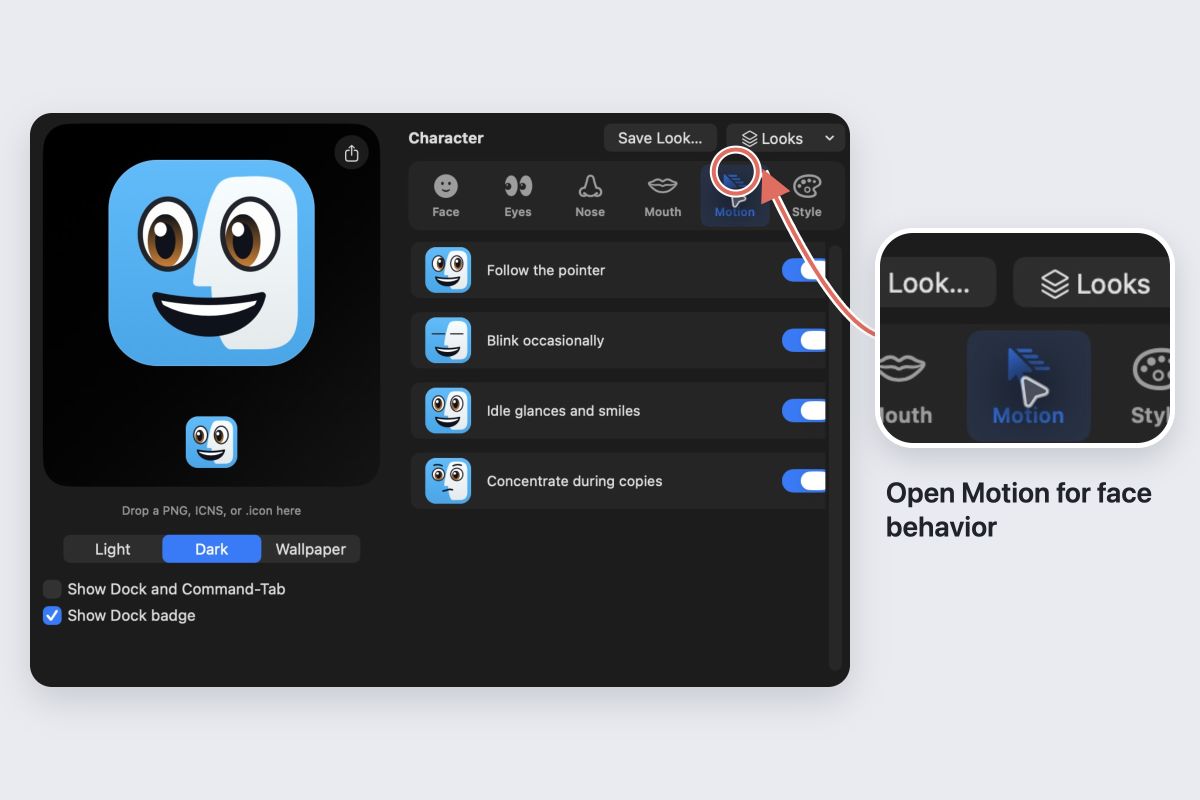
macOS Reduce Motion keeps supported IconSwapper effects still. For Finder, you can also disable pointer tracking, blinks and idle expressions separately under Motion.
Keep what is useful
You do not need to restore every icon to make the Dock calmer. Keep your chosen artwork and reduce its movement or labels. Use Restore Original Icon for any app you prefer completely unchanged.