Add Finder
You’ll need IconSwapper and macOS 14 or later. Keep IconSwapper running while you use the character.
- Choose Add App → Live Icon → Finder.
- Under My Characters, choose + New Character.
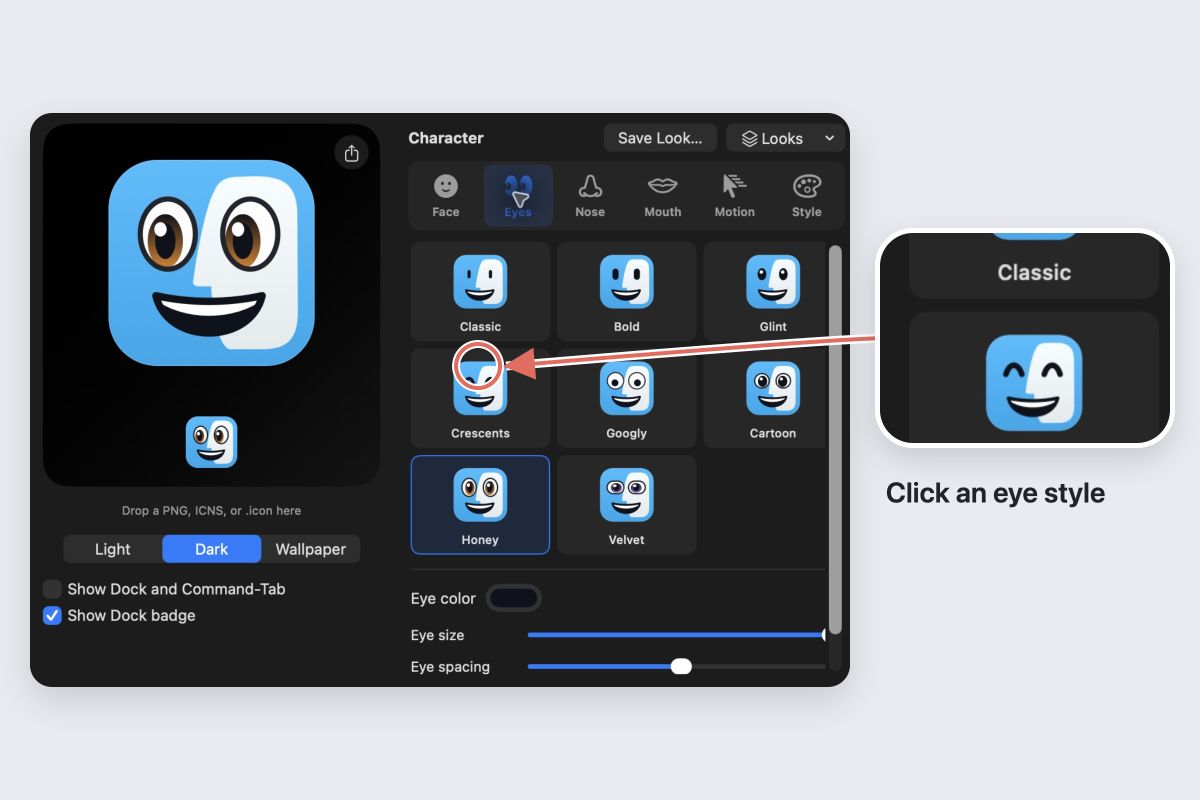
- Choose the two face colors. Then open Eyes, Nose and Mouth to change each feature. Hover a style to preview it, then click to apply it.
- Turn on Show Dock and Command-Tab if it is off, and follow any permission prompts.
Check Finder in your Dock before adding more detail. Keep the eyes and mouth clear at the size you actually use.
Choose the movement
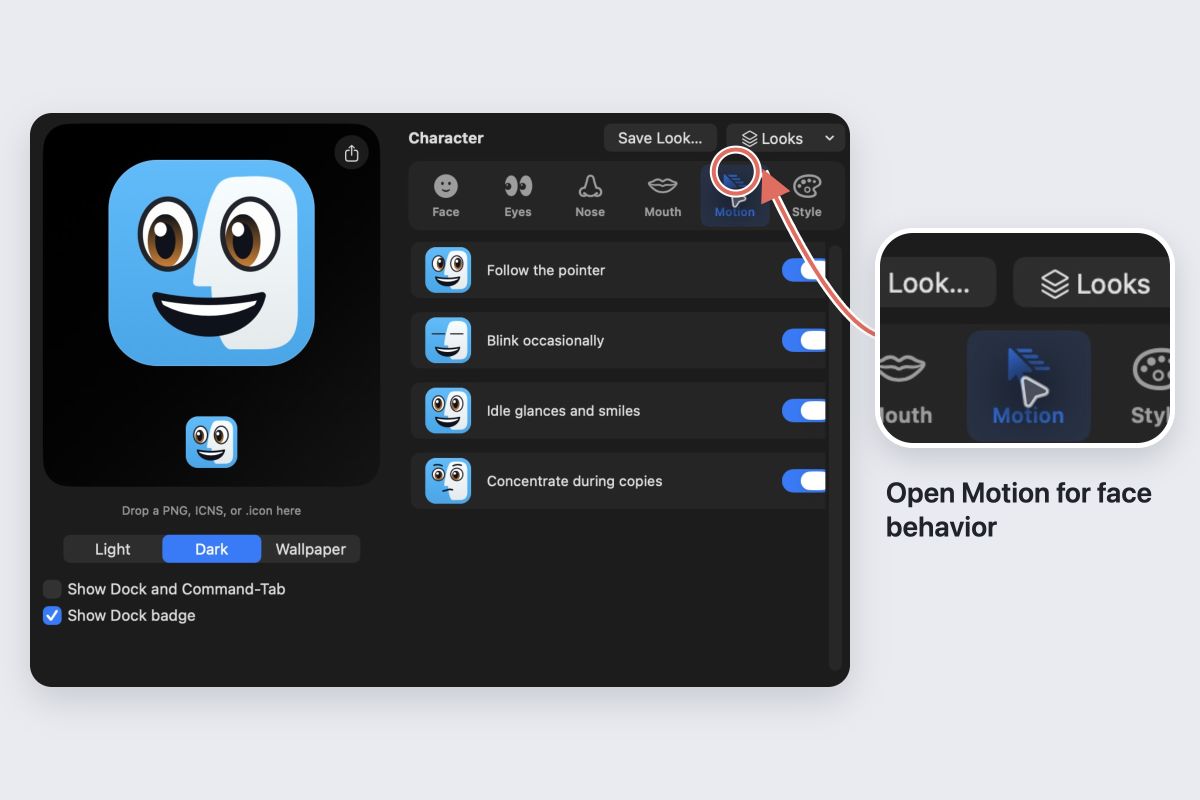
Open Motion to turn pointer tracking, blinks and idle expressions on or off. Pointer tracking makes the eyes look toward your pointer.
The optional copy reaction works when Finder shows a copy or duplication progress window. A quick copy may finish without a reaction. macOS Reduce Motion keeps the face still.
Save your character
Choose Save Character… and give it a name. This saves the face, motion and appearance together. Click a saved character in My Characters to use it; right-click to update or delete it.
Save Look… saves reusable styling separately. Use Save Character when you want to keep the whole face.
Pause or restore Finder
Choose Pause Live Face to stop the live behavior while keeping its styling. Choose Restore Original Icon to return to Finder’s original Dock and Command-Tab artwork.
This changes Finder’s app icon, not the icons of your files or folders.