Prepare a share card
Select the icon you want to share in IconSwapper.
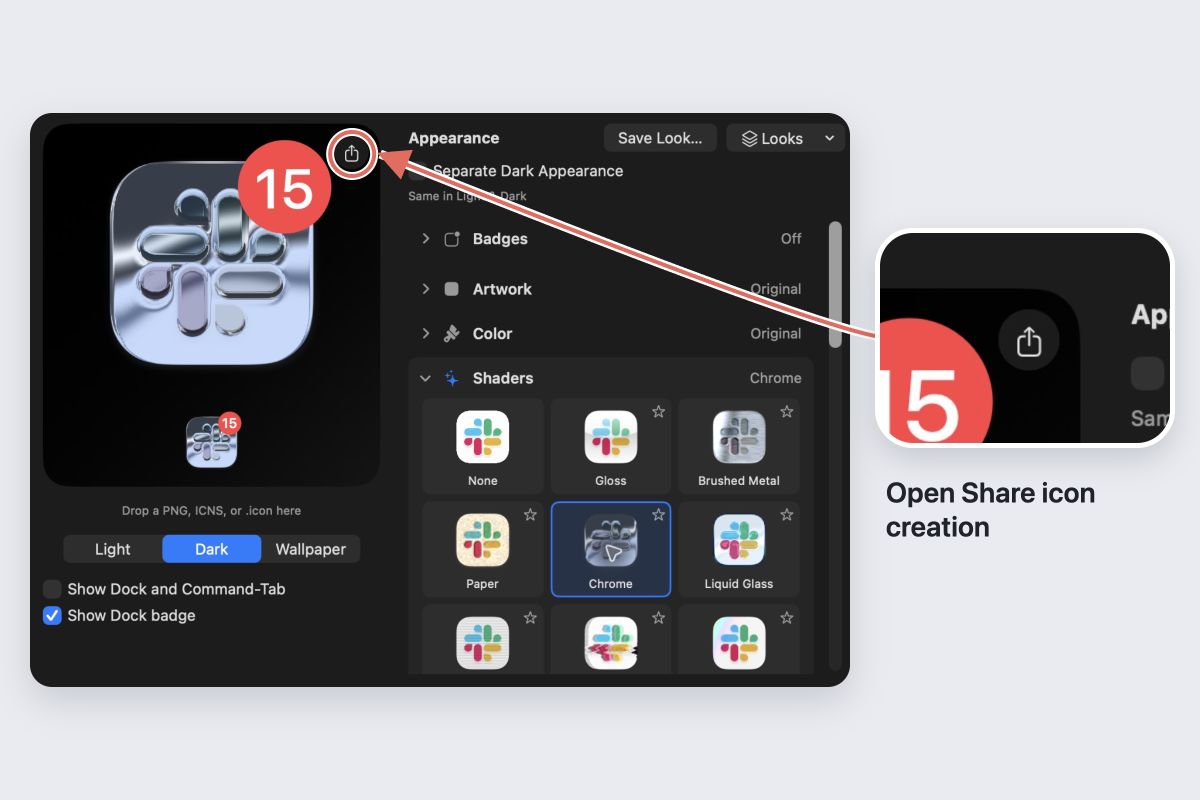
- Click the share button beside the preview, labelled Share icon creation.
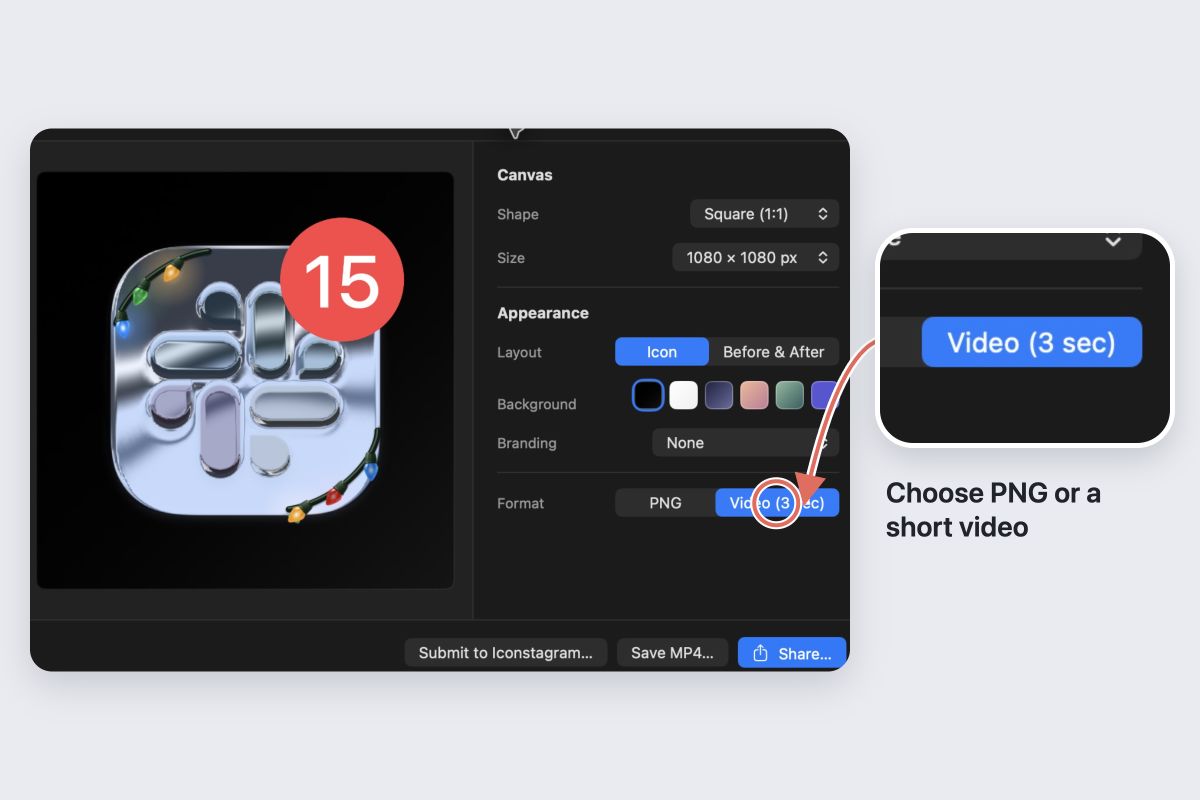
- Choose the card’s background and branding. Review the whole image, including any labels.
- Choose PNG, or Video (3 sec) if the creation supports motion.
- Use Save PNG… or Save MP4… if you want a local copy before submitting.
Only share artwork you have the right to publish. Check that the card contains no account details or other information you want to keep private.
Submit it to Iconstagram
Choose Submit to Iconstagram…. Enter a title. You can also add a public name and a social profile link.
Read the permission statement, enable it if you agree, then choose Upload for review. Wait for the submitted confirmation before closing the sheet.
What happens next
Submissions are reviewed before appearing on the website and in the app. A successful upload means the submission was received; it does not mean it is already public.
You can browse published creations in Iconstagram. Keep your exported copy if you also want to share the creation elsewhere.
Make the card easy to read
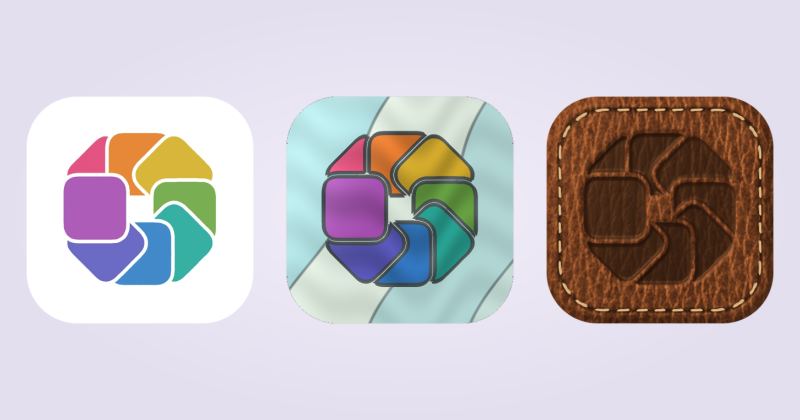
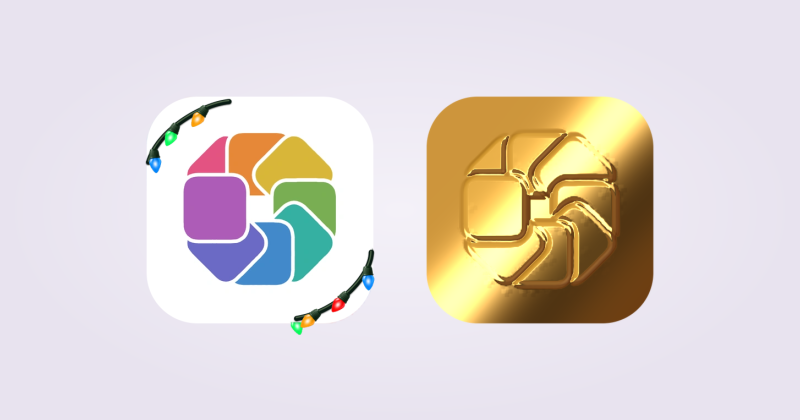
Choose a background that separates the icon from its surroundings. For a moving icon, pick a clip where the change is visible at small size.
A clear title helps people understand what you made. Describe the material, character or idea rather than listing every control you adjusted.