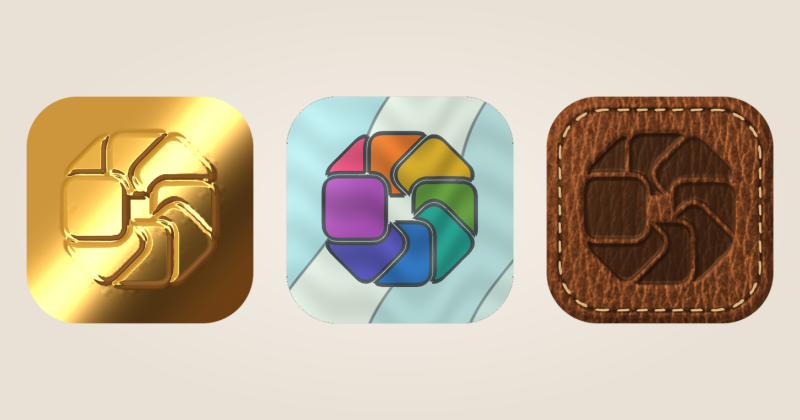
Try Classic Mac
Start with a Custom Icon in IconSwapper on macOS 14 or later. A simple symbol is a good first test.
- Select the icon and expand Shaders.
- Choose Classic Mac and inspect the large preview.
- Adjust Strength until the main shape remains easy to read.
- Choose Still in Motion if you want a stationary treatment. Check it in the actual Dock and Command-Tab.
This is a style applied to your artwork, not a replacement set of historical Apple icons.
Keep the recipe simple
Start with the original app silhouette, Classic Mac and no decorations. Let the treatment do the work.
For a different retro direction, try CRT on a second icon. Compare the two at Dock size before mixing them throughout the Dock.
Make a small set
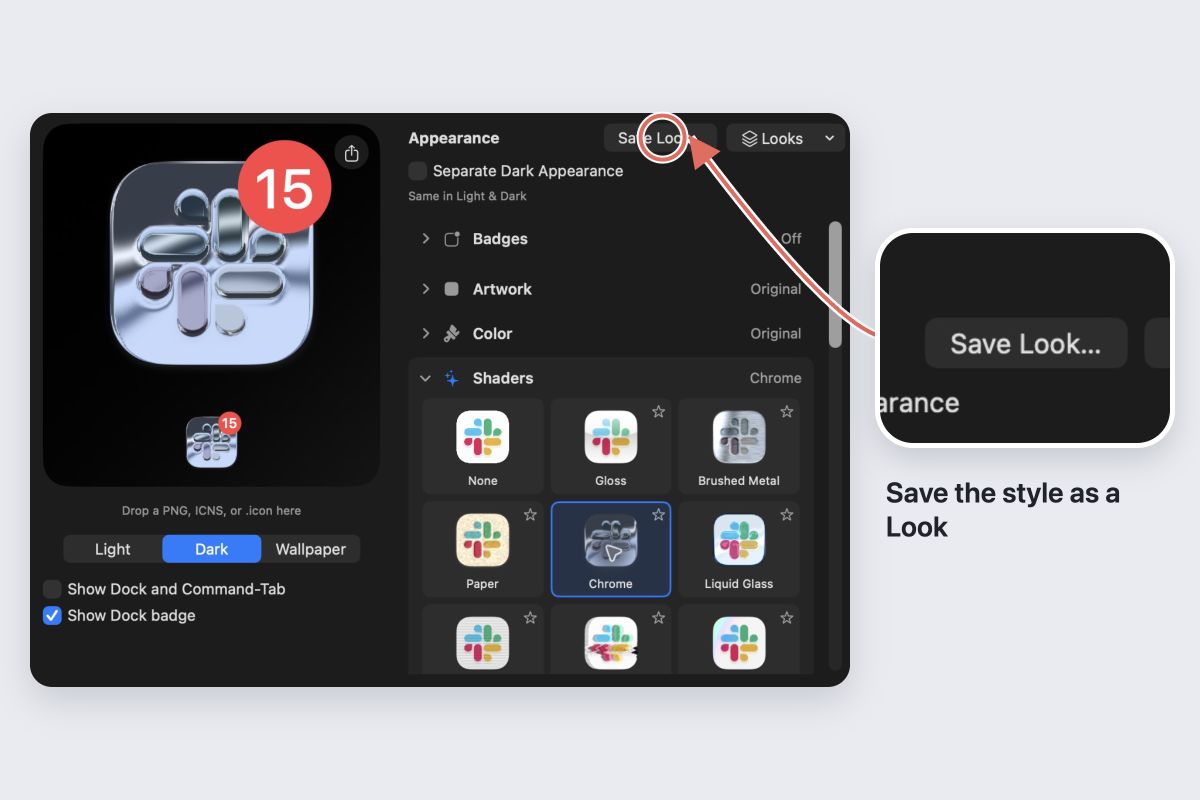
Choose Save Look… to reuse the treatment on a few Custom Icons. Preview the set together and check that each app still has a distinct shape.
Busy artwork may need a weaker treatment. Avoid relying on tiny lettering as the only clue to an app’s identity.
Undo the treatment
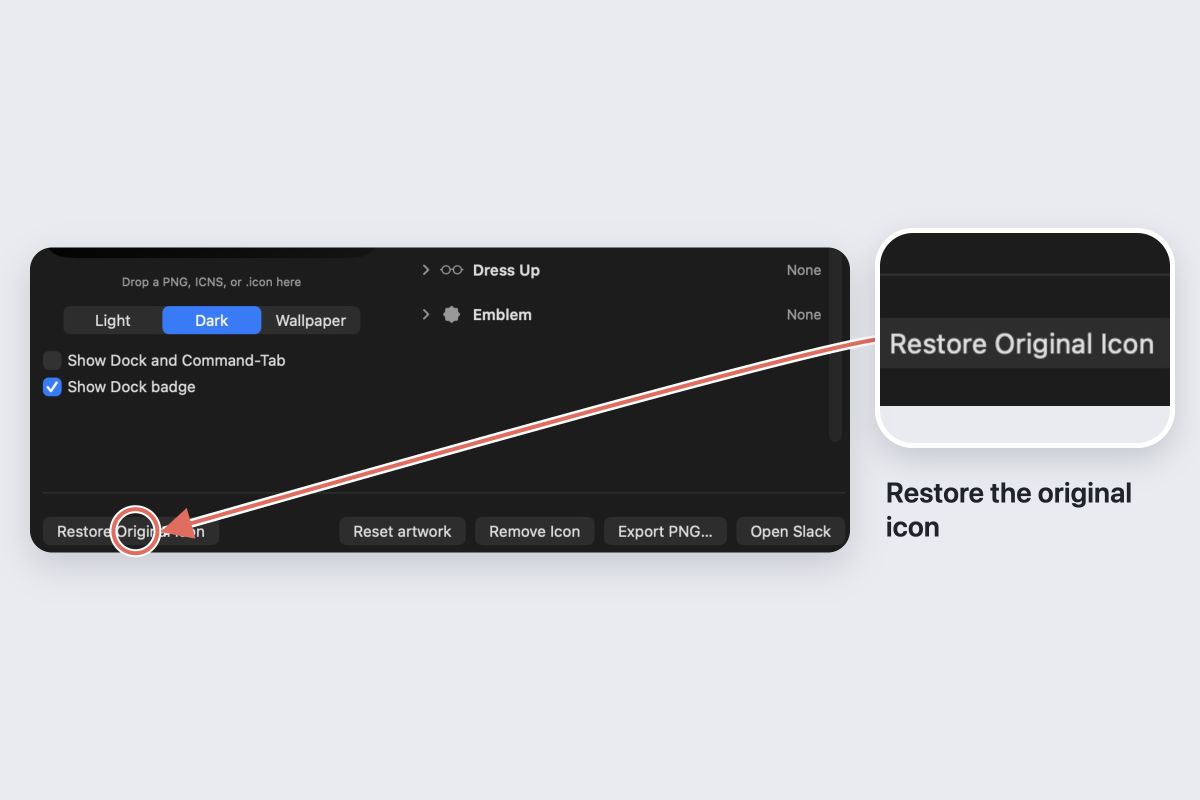
Choose None in Shaders to remove the material, or Restore Original Icon to restore the whole icon. Keep the saved Look if you want to return to it later.