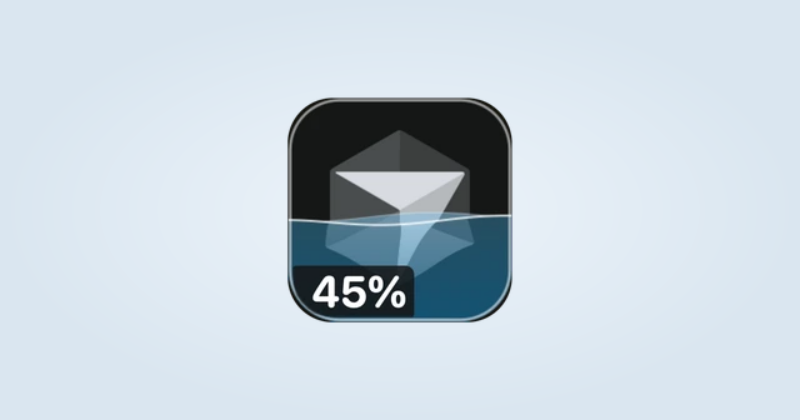
Set up the water meter
Use the installed Cursor app, a signed-in account and IconSwapper on macOS 14 or later.
- Choose Add App → Live Icon → Cursor in IconSwapper.
- Check the account and usage status. If Cursor is signed out, sign in there first.
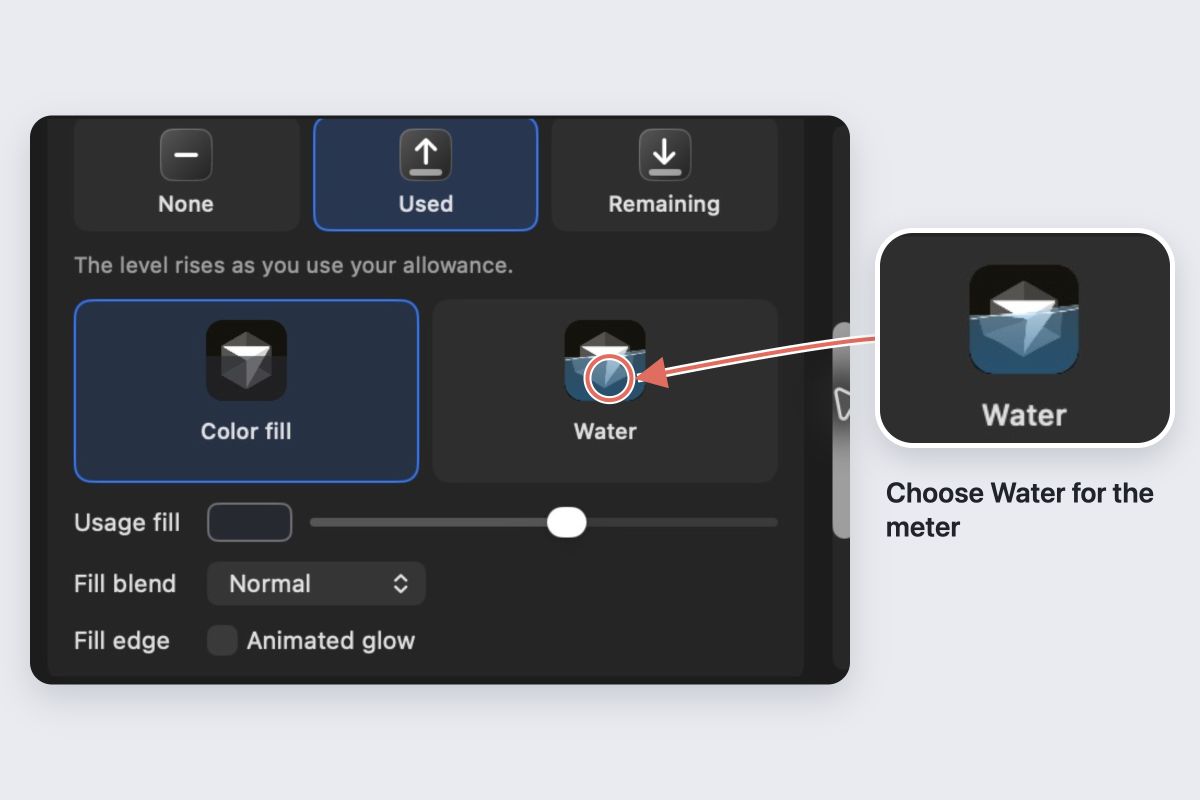
- Under Usage, choose Used to make the water rise, or Remaining to make it fall as you spend your allowance.
- Choose Water, then adjust Usage fill to pick its color.
Keep IconSwapper running and check Cursor’s Dock icon. Try a fill color that leaves the Cursor shape easy to recognize.
Add just the labels you need
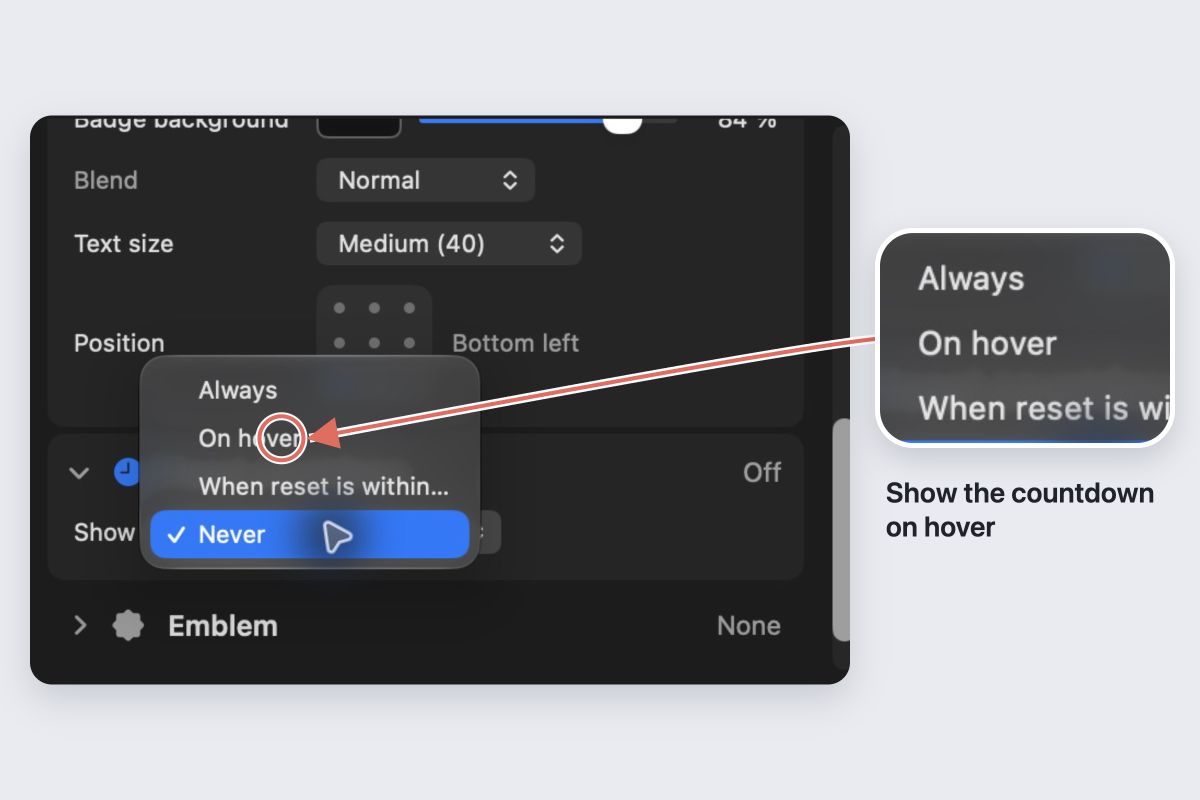
Set Percentage → Show to Always, On hover or When usage reaches…. The threshold measures usage spent, whichever direction the water moves.
Set Reset countdown → Show independently. For Cursor, the reset uses the billing-cycle end date supplied with the usage reading; it is not necessarily a weekly reset.
Check the account before the artwork
Use the account panel and refresh button to inspect the reading. The meter reflects the usage information Cursor supplies, not a count of your keystrokes or every request.
If the water seems stuck, turn off Try an example percentage and check for a signed-out or unavailable status. Hover behavior requires the relevant Accessibility access.
Keep it simple
Choose Color fill instead of Water for a simpler meter. Choose Usage → None to remove it, or Restore Original Icon to restore the app’s artwork.