Open the library
Select a Custom Icon in IconSwapper on macOS 14 or later.
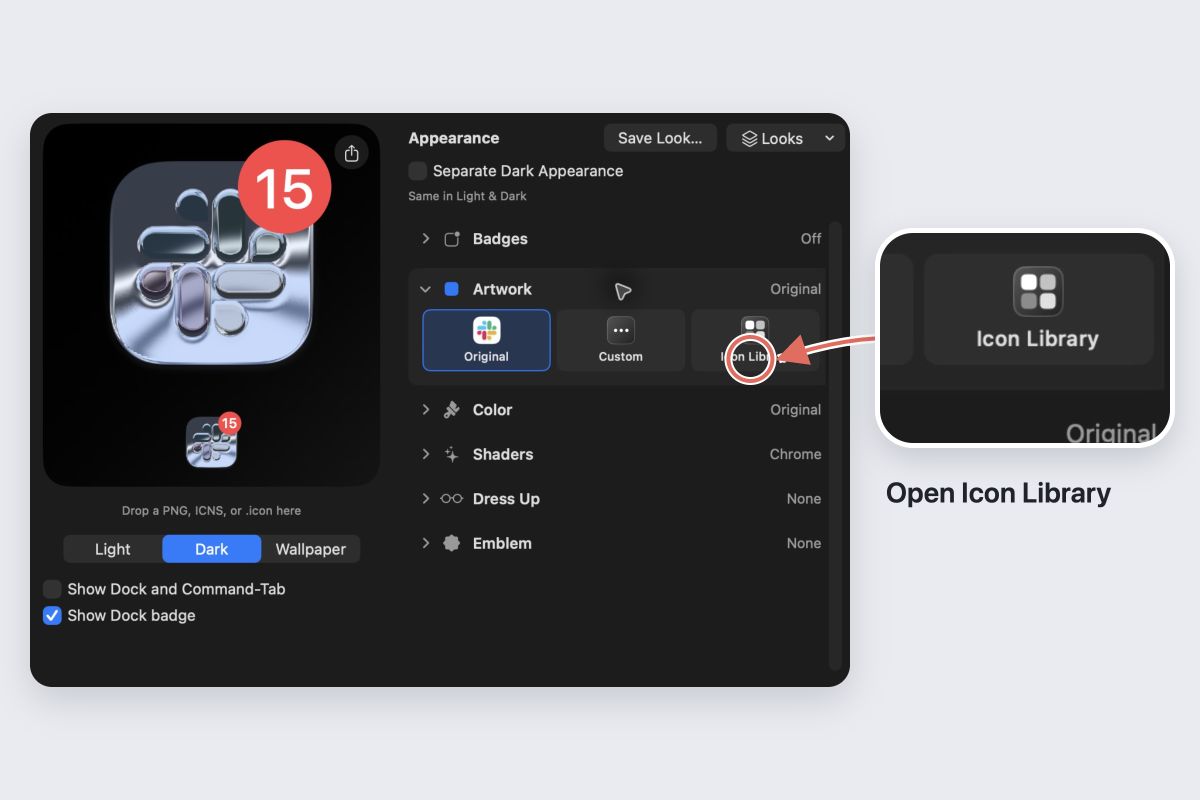
- Expand Artwork and choose Icon Library.
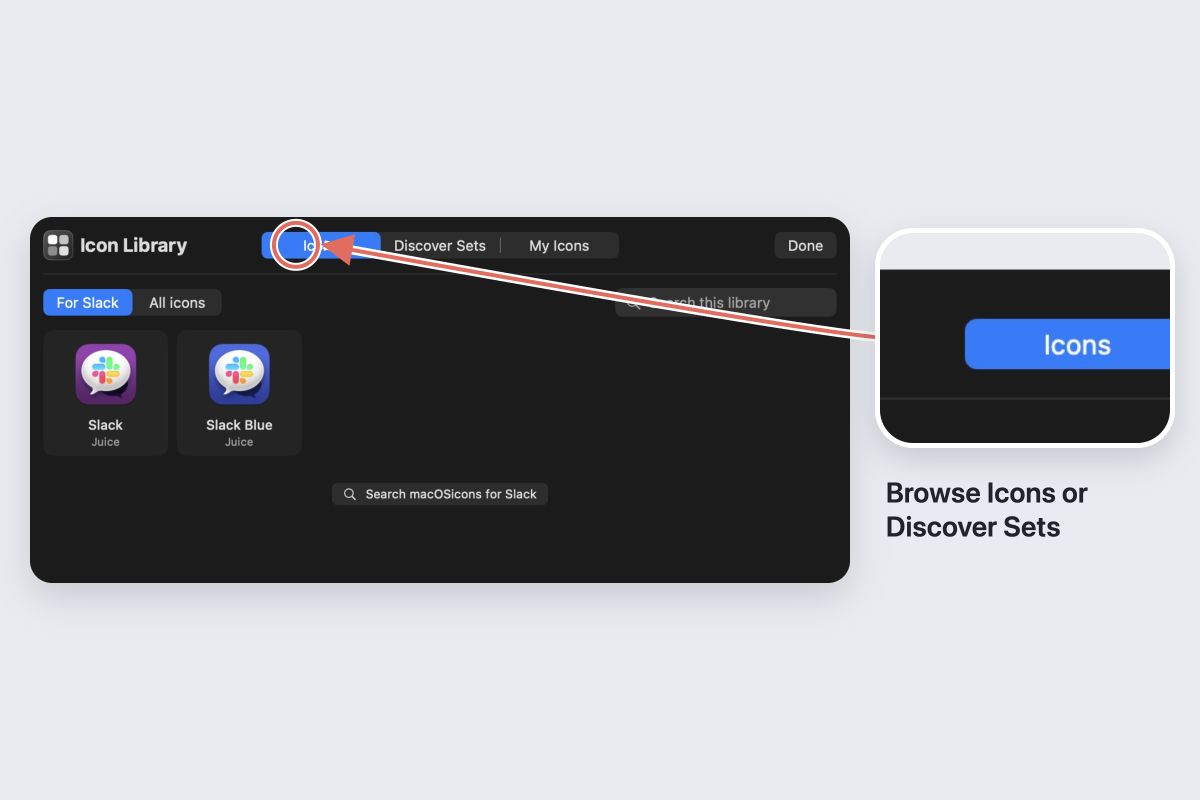
- In Icons, use the suggested artwork for the app or switch to All icons. Search for the app or a style.
- Select a result and read its name and designer or uploader information.
- Choose Use icon to apply it. Check its shape in the actual Dock.
Keep IconSwapper running and make sure Show Dock and Command-Tab is enabled. A large library preview can hide how small details behave at Dock size.
Explore a set
Use Discover Sets when you want a collection with a shared style. Compare a few of your most-used apps before replacing a whole group.
Use My Icons for artwork you have saved. Where available, Save to My Icons keeps a result handy for later.
Keep the credit with the artwork
Read the designer credit and follow its link when provided. A downloadable icon is not automatically licensed for every use. Check the creator’s terms before redistributing it or including it in a public pack.
Using alternative artwork in your own Dock and uploading it as your own creation are different actions. Credit the artwork’s creator when you share.
If you cannot find the right icon
Try All icons or a simpler search. You can also import your own PNG, ICNS or .icon file. To undo a choice, use Restore Original Icon.