
Hang some lights
You’ll need IconSwapper on macOS 14 or later. Start with one Custom Icon and keep IconSwapper running while you use the decorations.
- Choose Add App, select the custom-icon option, and pick an installed app.
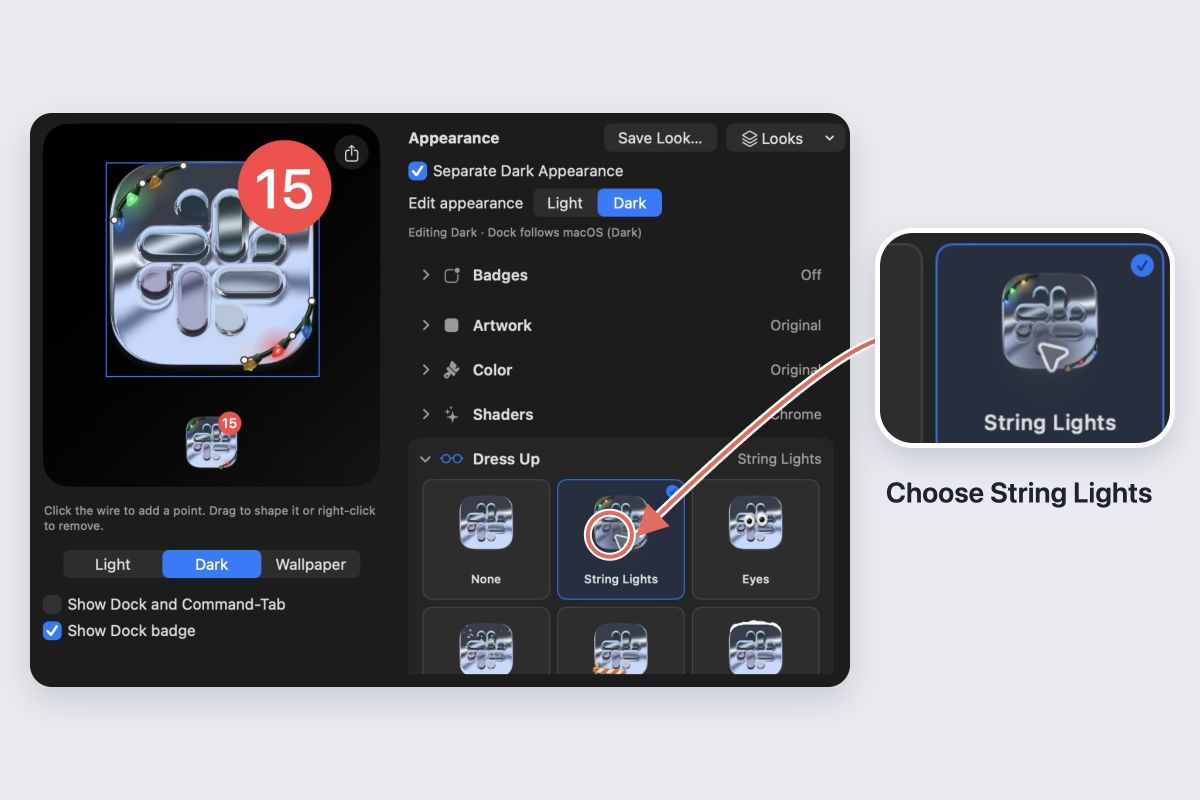
- Expand Dress Up and select String Lights.
- Choose Warm White for a softer look or Multicolor for a brighter one. In Lighting, choose Steady, Twinkle or Blink.
- Adjust Bulb size and Spacing. Use Drape to choose how the wire hangs, or Rehang to try another arrangement.
- Turn on Show Dock and Command-Tab if it is off, and follow any permission prompts.
Check the result in your Dock before adding more. A few larger lights often read more clearly than lots of tiny ones.
Add pine or snow
In Dress Up, select Pine to add greenery. In the large preview, drag a sprig to move it, drag a square corner to resize it, or use the round arrow to rotate it.
Snow Cap rests on top of the artwork. Snow Globe adds falling snow. You can combine decorations, but leave enough of the app’s shape visible to recognize it quickly.
Make it your own
For a warm look, try Warm White lights with Steady lighting and a small pine sprig. For something brighter, try Multicolor lights with Twinkle and Snow Cap.
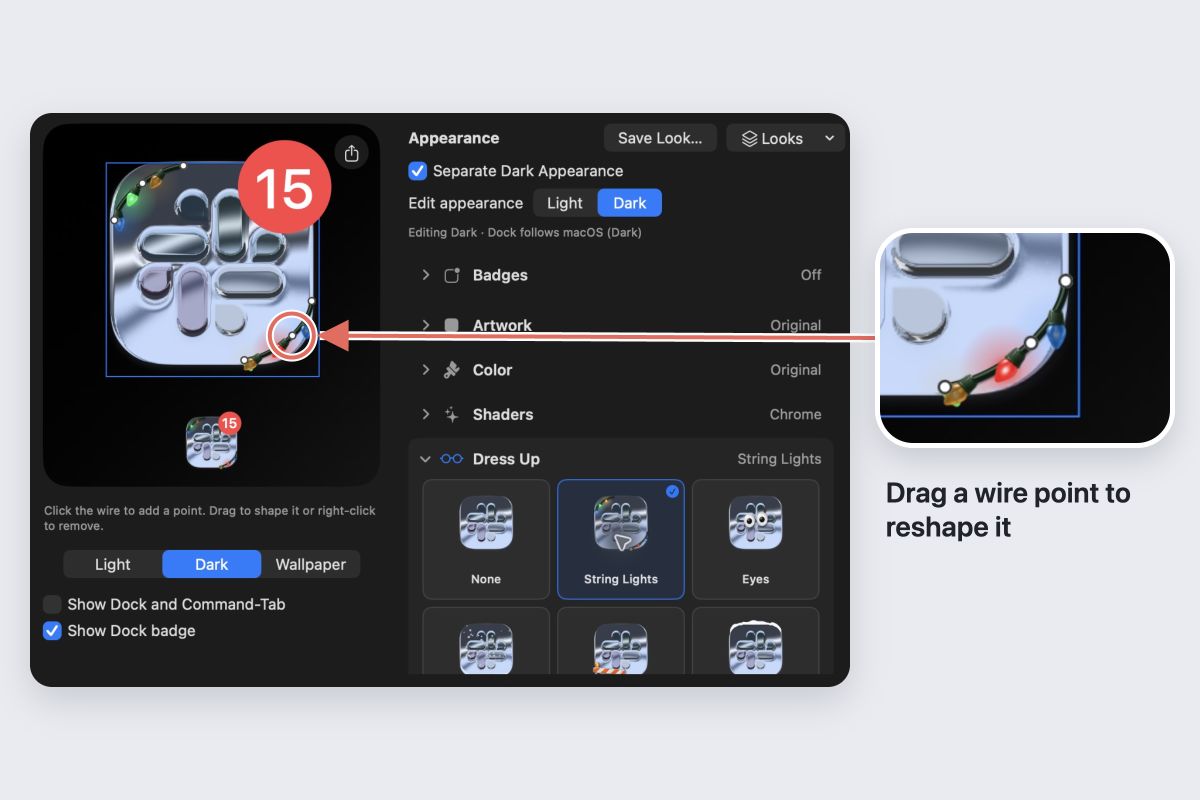
To reshape the lights, click the wire in the large preview to add a point, then drag it. Right-click a point and choose Remove Point to simplify the wire.
Use Motion to control animation. macOS Reduce Motion keeps the decorations still.
Reuse it on other apps
Choose Save Look… and name your holiday style. Apply it from Looks on another Custom Icon, then check the fit. Different icon shapes may need different wire or foliage placement.
Take the decorations down
Choose None in Dress Up to turn off the decorations while keeping their settings for later. Choose Restore Original Icon to return the app’s original Dock and Command-Tab artwork.