Check what you are looking at
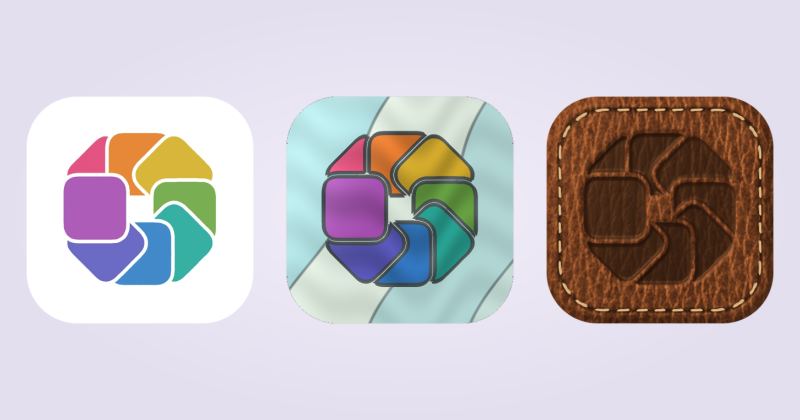
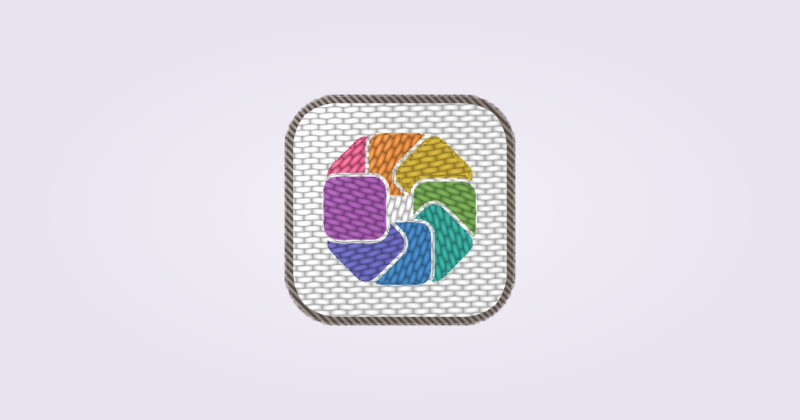
A Finder file icon and an app’s Dock artwork are separate. First identify which one you expected to change.
- If you used IconSwapper, look at the actual Dock and Command-Tab. The app file in Finder may still show its original icon.
- Check that IconSwapper is running. Closing the editor window is different from quitting the app.
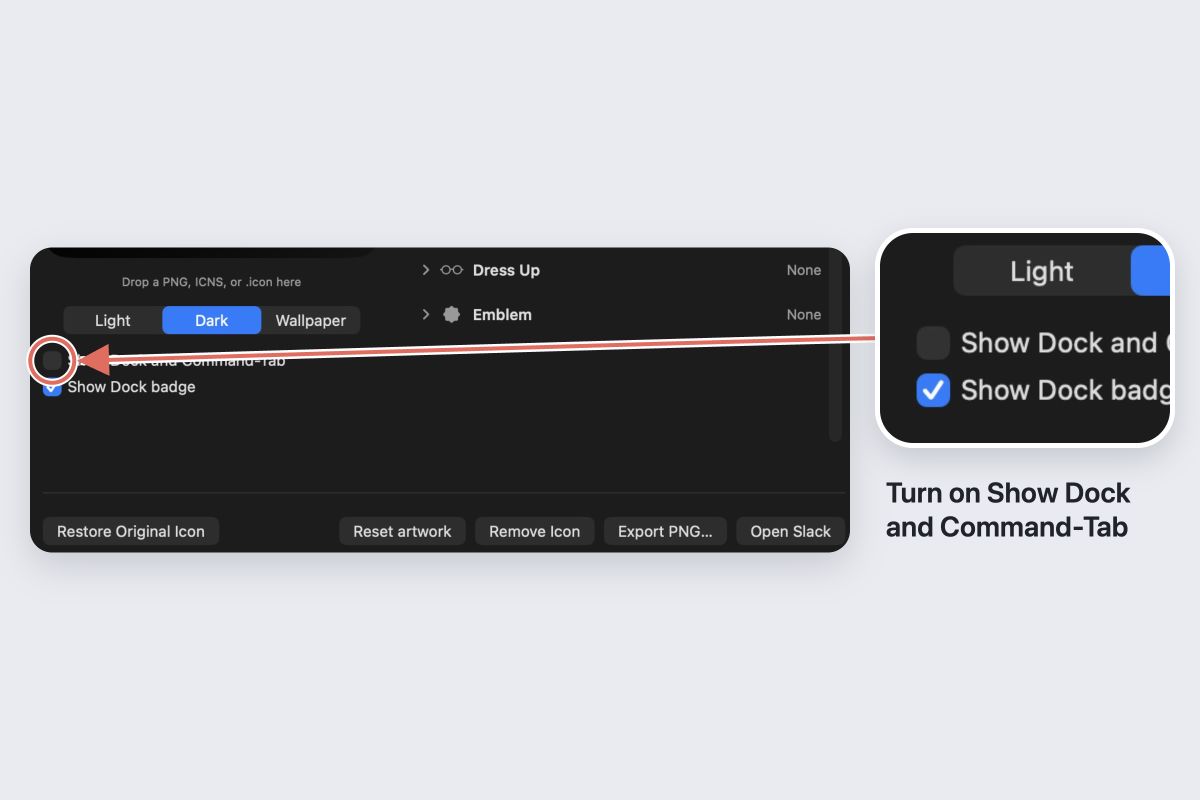
- For a Custom Icon, check Show Dock and Command-Tab. Turn it on if it is off.
- Confirm that you selected the installed copy of the app you actually open. A second copy in Downloads is a different target.
Read the permission guidance
Follow the permission card or status shown in IconSwapper. Some configurations need Accessibility to locate the target or respond to hover. Live Icons may also need app-specific access, such as Automation for music playback.
If a Live Icon shows its normal artwork, check its activity first. Music without available artwork, a paused track or an idle assistant may not produce the change you expected.
Separate a preview from a live result
An editor animation or example percentage only proves that the preview works. Turn off the example percentage and check the live account or playback status. Then test the actual Dock.
If you previously restored the artwork, use Reapply Icon when offered to bring the saved customization back.
If you used Get Info
Select the small icon at the top of the Info window before pasting, and make sure you copied an image. Some protected items cannot be modified. See the Get Info steps.
If it still does not work
Contact Michael with the app name, macOS version, IconSwapper version and the status shown in IconSwapper. Mention whether the problem is in Finder, the Dock or Command-Tab. A screenshot of the relevant settings helps.