Make a second appearance
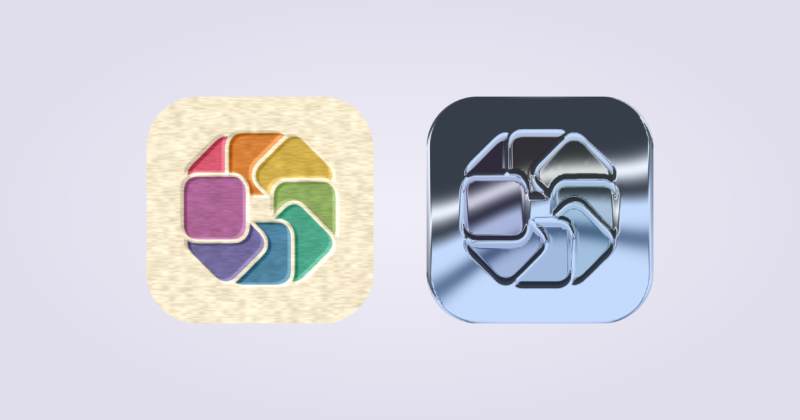
Separate appearances work with Custom Icons in IconSwapper on macOS 14 or later. Live Icons keep one appearance.
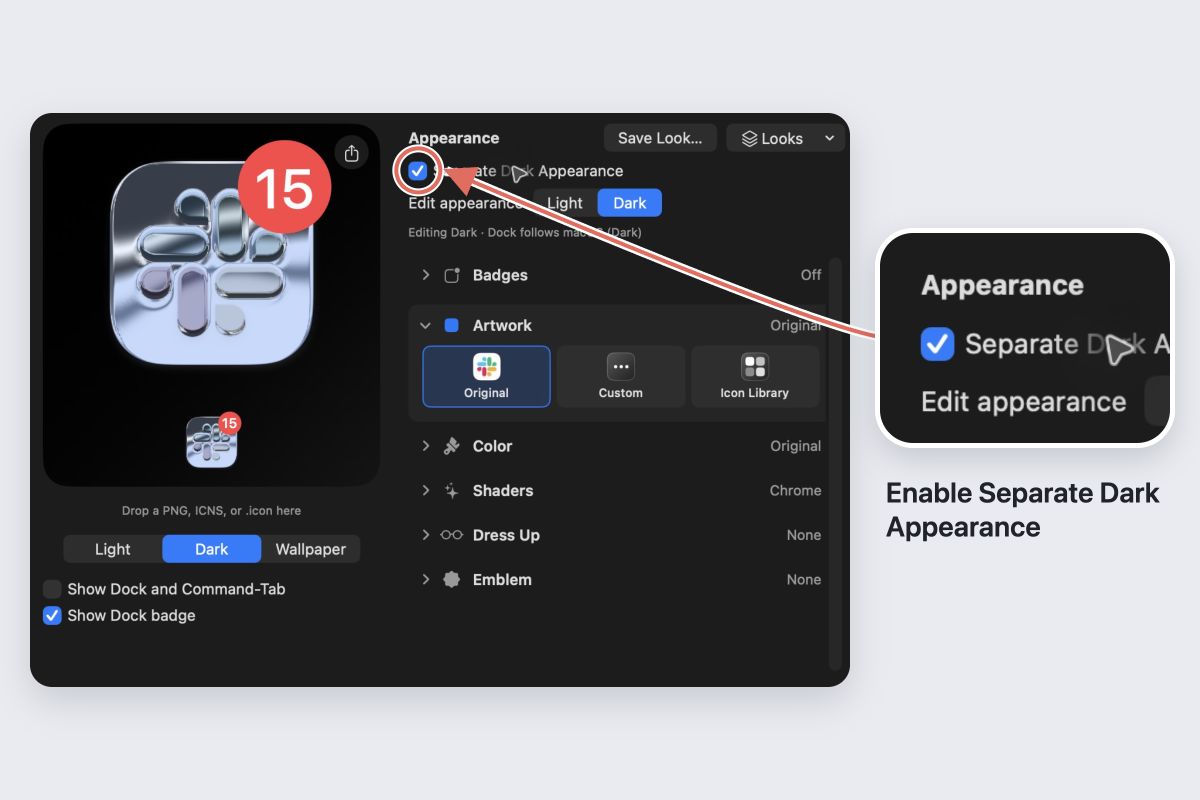
- Select a Custom Icon and turn on Separate Dark Appearance above the inspector.
- Choose Light and style the daytime version.
- Choose Dark and edit the second version. The first Dark version starts as a copy of your current style.
- Change macOS appearance and check the Dock and Command-Tab with IconSwapper running.
The Light and Dark buttons choose what you edit. The actual Dock follows macOS, independently of the editing tab.
Choose what changes
Artwork, colors, shaders, decorations and emblems can differ between the two appearances. Badge behavior stays shared.
Try a brighter accent in Dark rather than simply making everything darker. Check the icon against your real wallpaper: a dark edge can disappear against a dark Dock.
Apply a saved Look carefully
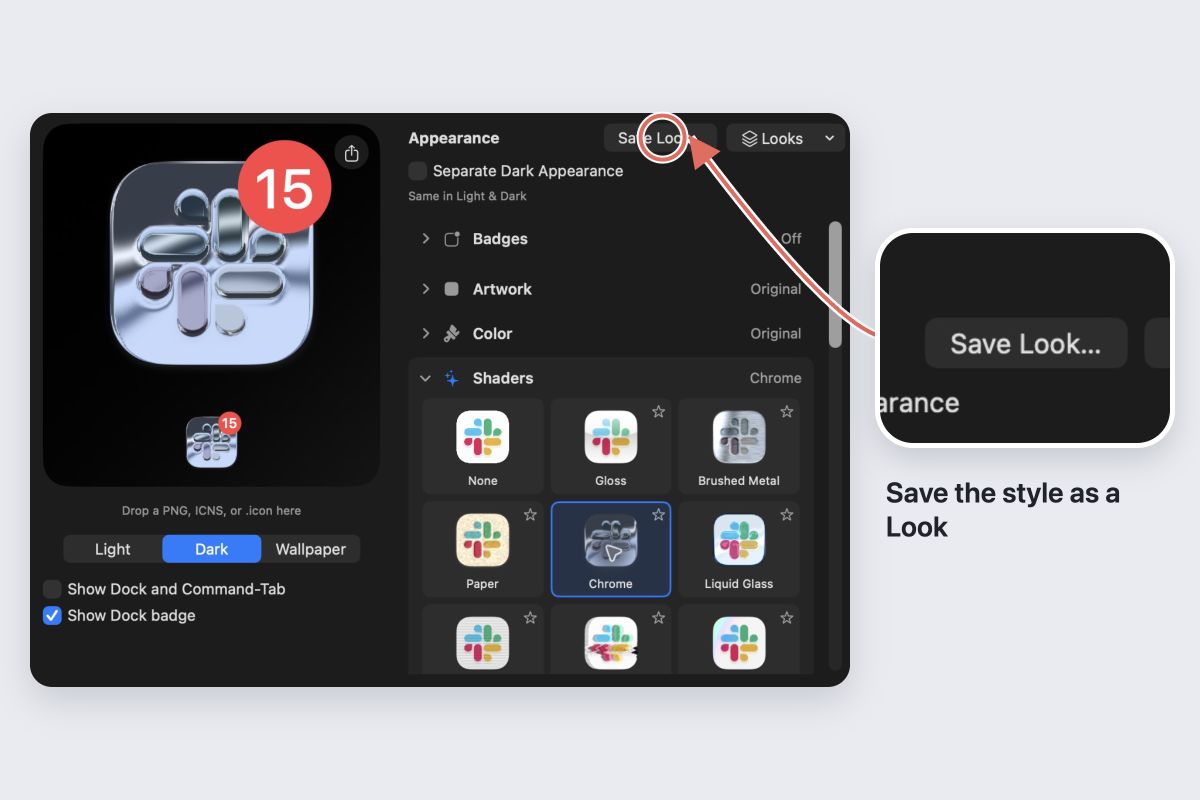
A saved Look applies to the editing appearance you have selected. Choose Light or Dark before applying it. Check both versions afterwards so you do not accidentally leave one unfinished.
Return to one appearance
Turn off Separate Dark Appearance to use the Light version in both modes. The Dark version is retained for later.
Restore Original Icon clears both custom appearances. If you want to keep your work, save the styles before restoring.