Set a badge threshold
Use a configured Custom Icon or Live Icon in IconSwapper on macOS 14 or later.
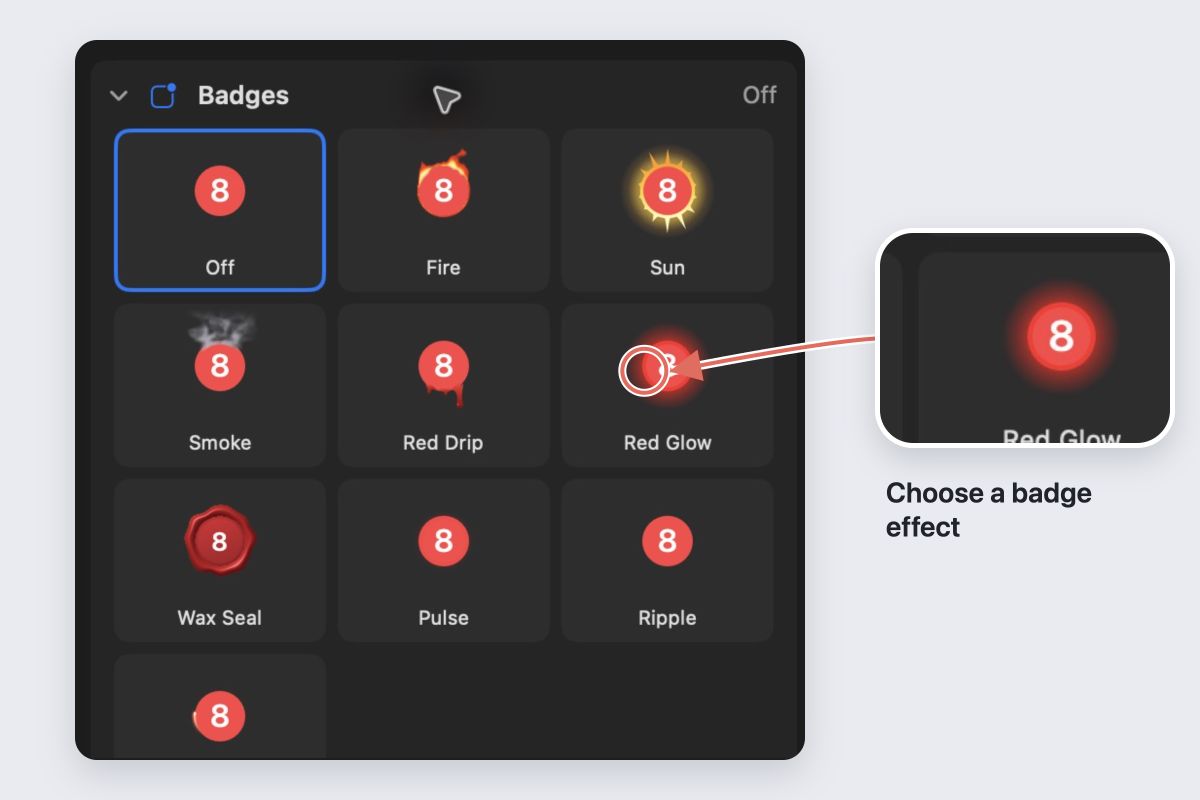
- Select the app and expand Badges.
- Choose an effect such as Red Glow, Wax Seal, Pulse or Glint.
- Set the first unread count that should trigger the effect. Start with a number that means something for that app.
- Choose whether the effect stays active above the threshold or plays briefly on each increase.
The effect follows the app’s numeric Dock badge. It does not read your inbox independently or create an unread count for apps that do not provide one.
Choose a useful signal
Try Red Glow for a steady highlight. Wax Seal puts the current badge text on a stamped face. Glint travels around the outer rim.
Use a higher threshold for a busy inbox and a lower one for an app where one unread item matters. A signal that is always firing soon becomes background noise.
Test an actual badge change
Keep IconSwapper running and check the real Dock when the unread count changes. The effect disappears below the threshold. If nothing happens, confirm that the app has a numeric badge and that the count meets your threshold.
The large editor preview is useful for styling, but inspect the badge at your normal Dock size before settling on the effect.
Remove the effect
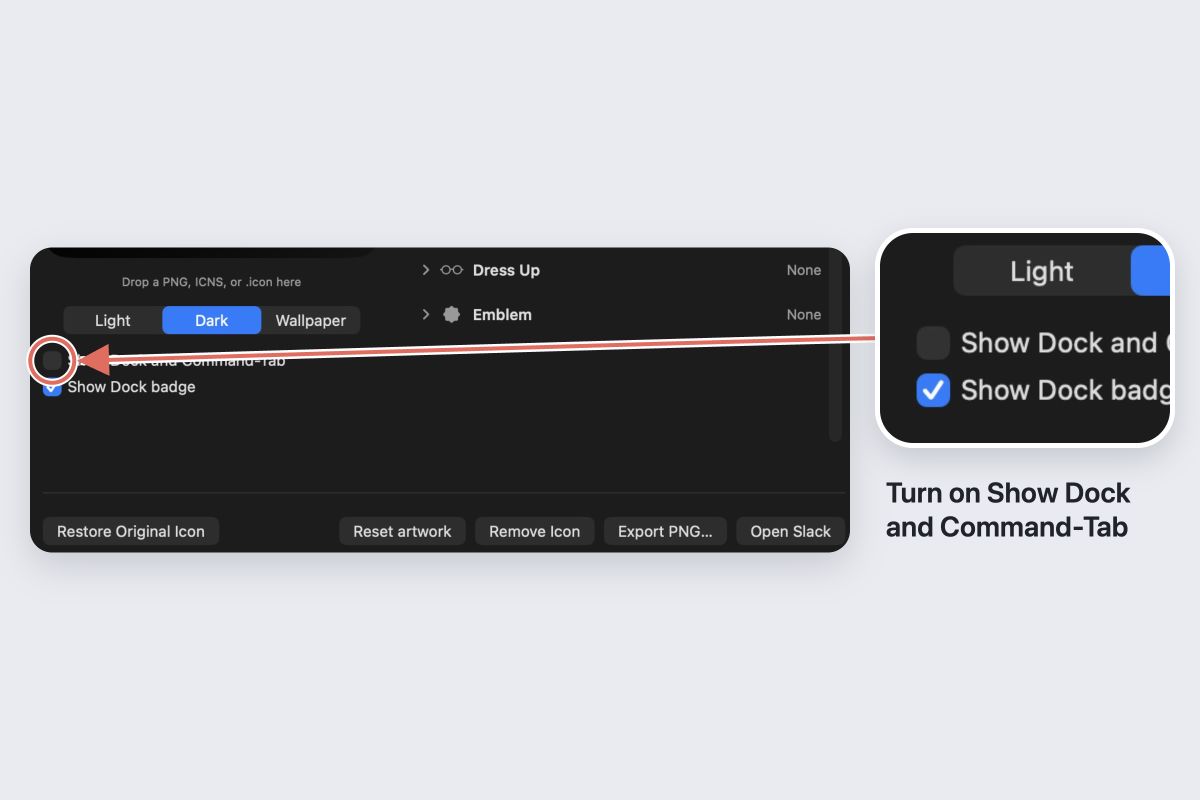
Choose None in Badges to remove the treatment. macOS Reduce Motion holds effects still. Restoring the original icon removes IconSwapper’s artwork treatment; it does not change the app’s unread messages.