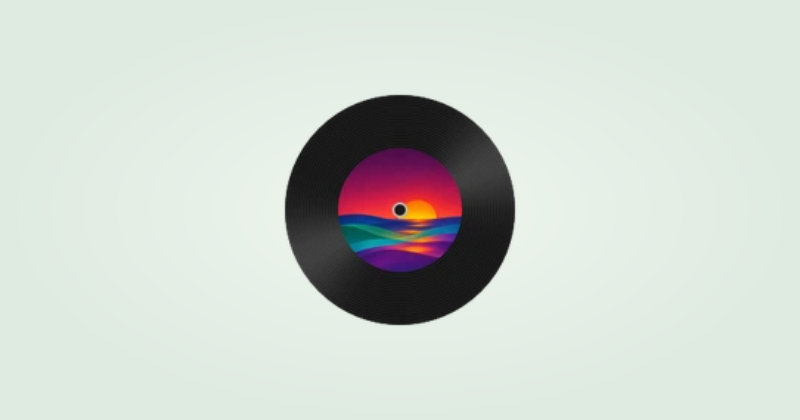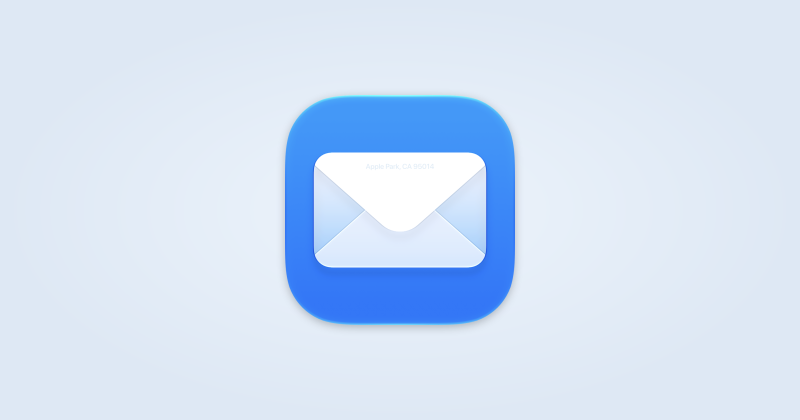
Add Mail
This guide is for Apple’s installed Mail app and IconSwapper on macOS 14 or later.
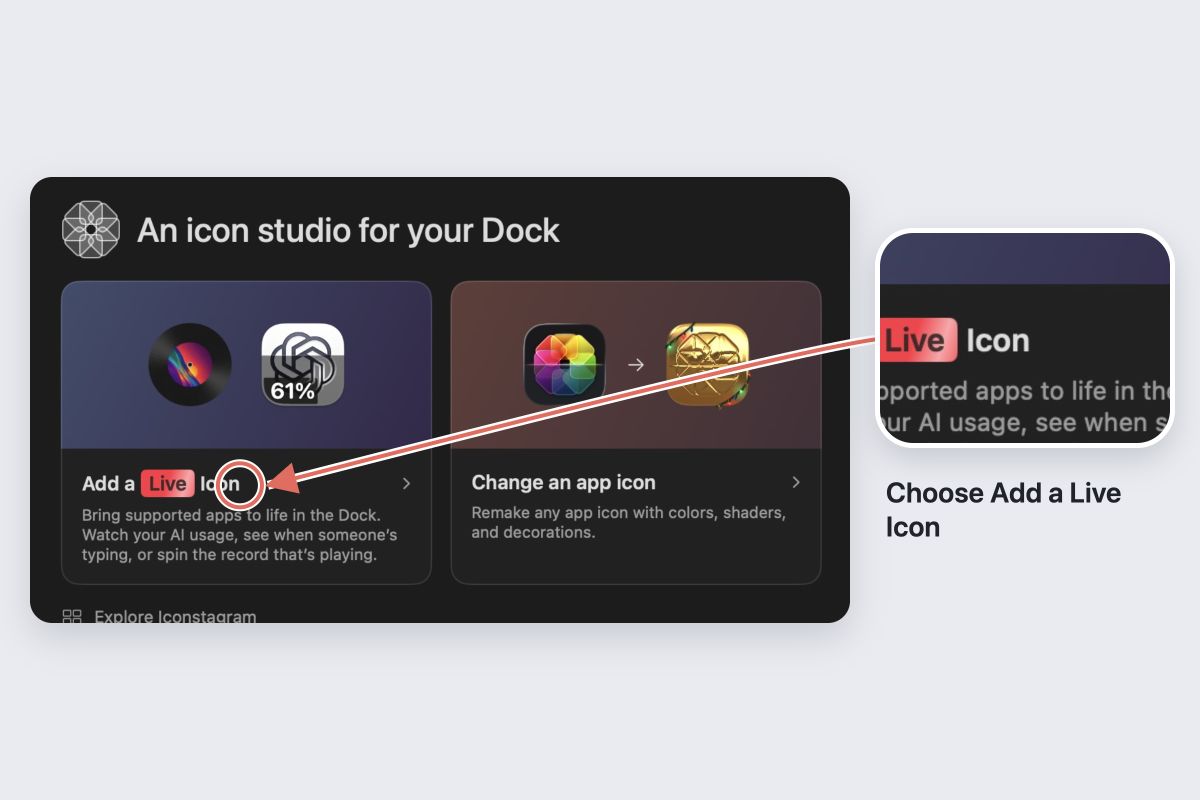
- Choose Add App → Live Icon → Mail.
- Follow the permission guidance so IconSwapper can observe supported Mail activity.
- Choose an Envelope style: Classic Blue, Wax Seal or Juice Airmail.
- Open a compose window in Mail and check the envelope in the Dock. Keep IconSwapper running.
Choose which activity to show
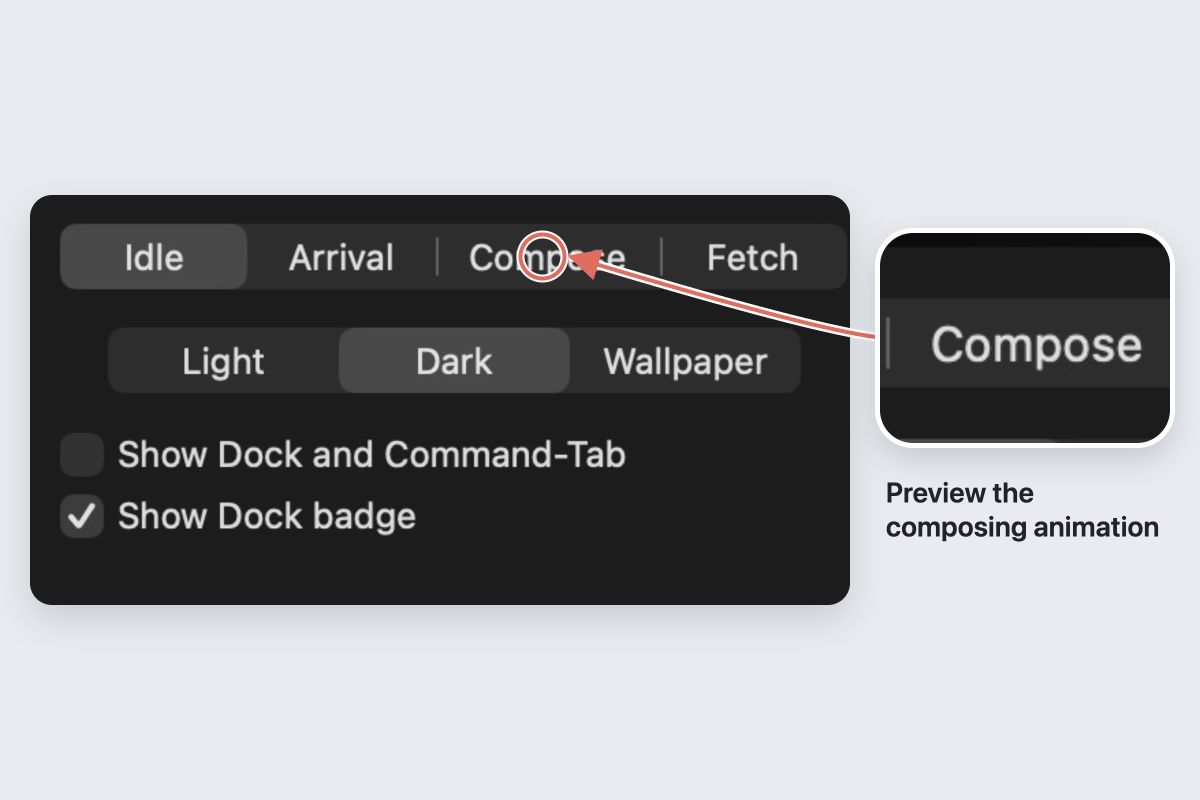
The Mail inspector lets you control composing, arrival and fetching activity, along with the arrival glow and fetching glints. Use the Arrival, Compose or Fetch preview to try the motion.
Wax Seal and Juice Airmail also change the stationery while Mail is idle. Check the resting artwork as well as the animation.
Understand the signals
The arrival effect follows an increase in Mail’s numeric unread Dock badge. It is not a separate notification for every message. If Mail does not show a badge increase, there may be no arrival effect.
Fetching detection follows Mail’s English sidebar status for checking mail. Do not expect it to detect that status in every language or every moment of background syncing.
Check it in Mail
A preview is only an example. Test a compose window and an actual unread-badge increase before relying on the icon. If the animation is missing, check the permission status and the activity controls.
Choose Restore Original Icon to return Mail’s original artwork. macOS Reduce Motion keeps the effects still.