Connect Messages
Use Apple’s Messages app and IconSwapper on macOS 14 or later.
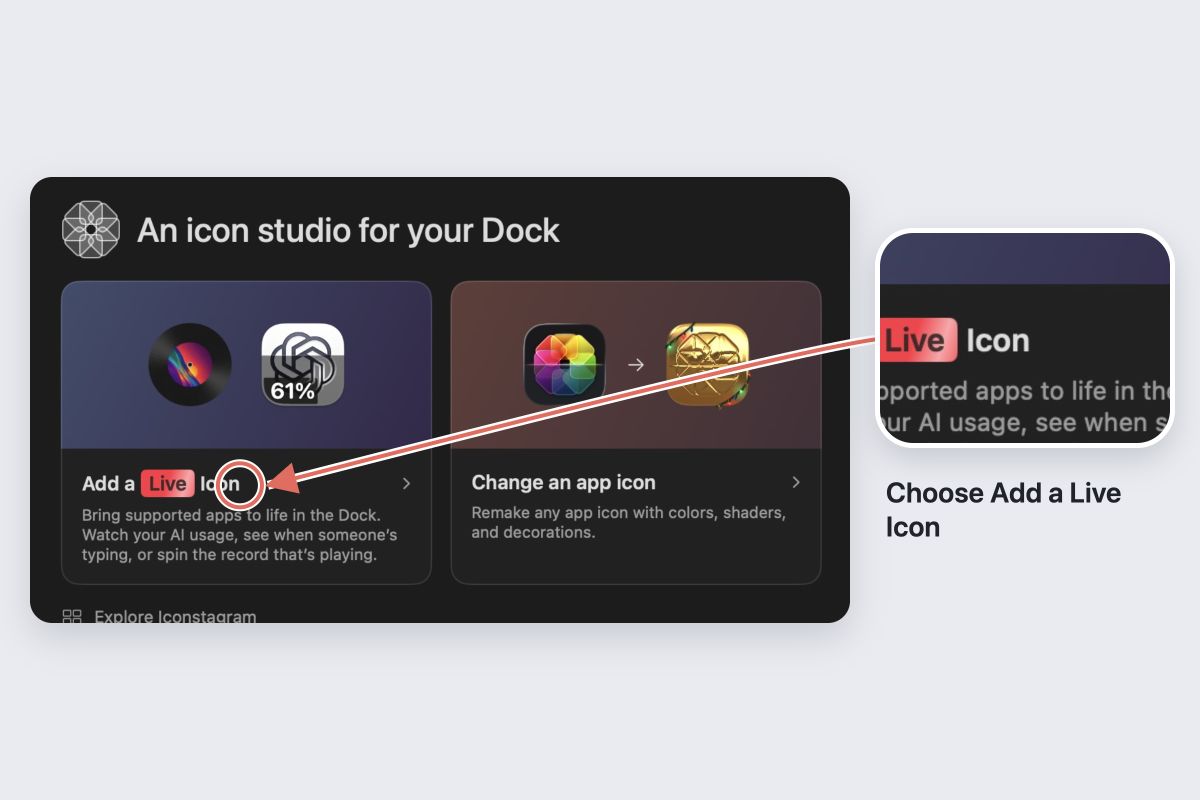
- Choose Add App → Live Icon → Messages.
- Follow the Accessibility permission guidance in IconSwapper.
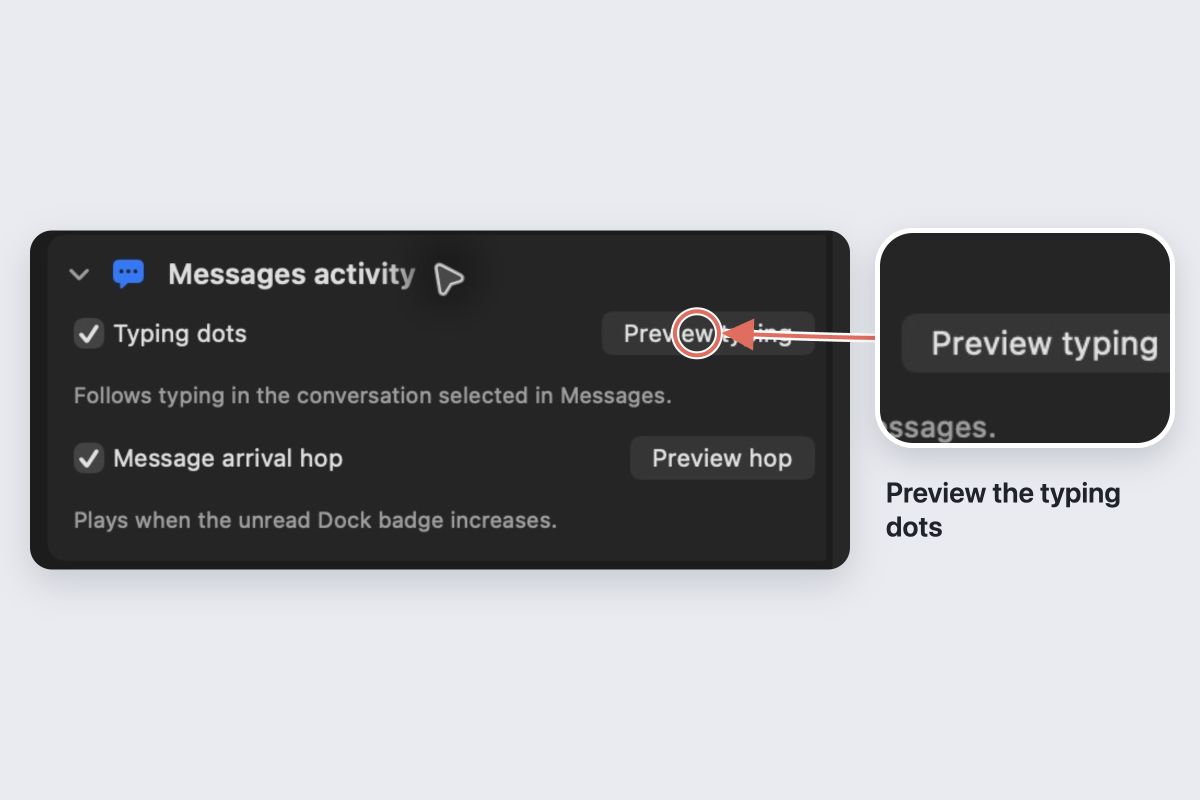
- Open a conversation in Messages. Incoming typing in the selected conversation can drive the Dock dots.
- Adjust the bubble count, colors, gloss and glow in the inspector. Check the result at your normal Dock size.
Keep IconSwapper running. The selected conversation matters: this is not a monitor of typing across all your conversations.
Understand the arrival hop
The hop follows an increase in Messages’ unread Dock badge. A message that does not increase that badge may not produce a hop.
Keep the movement small enough that you can still recognize the icon. Color and contrast matter more than elaborate detail at Dock size.
If no dots appear
Check that the other person is typing in the conversation selected in Messages and that Messages itself shows typing activity. Then check IconSwapper’s permission status.
An editor preview can demonstrate the artwork without proving that a real conversation is connected. Test the live Dock before relying on it.
Keep it still or restore it
macOS Reduce Motion keeps the dots still and suppresses the arrival hop. Choose Restore Original Icon to return the original Messages artwork.